Understand the volume behind a flat plan
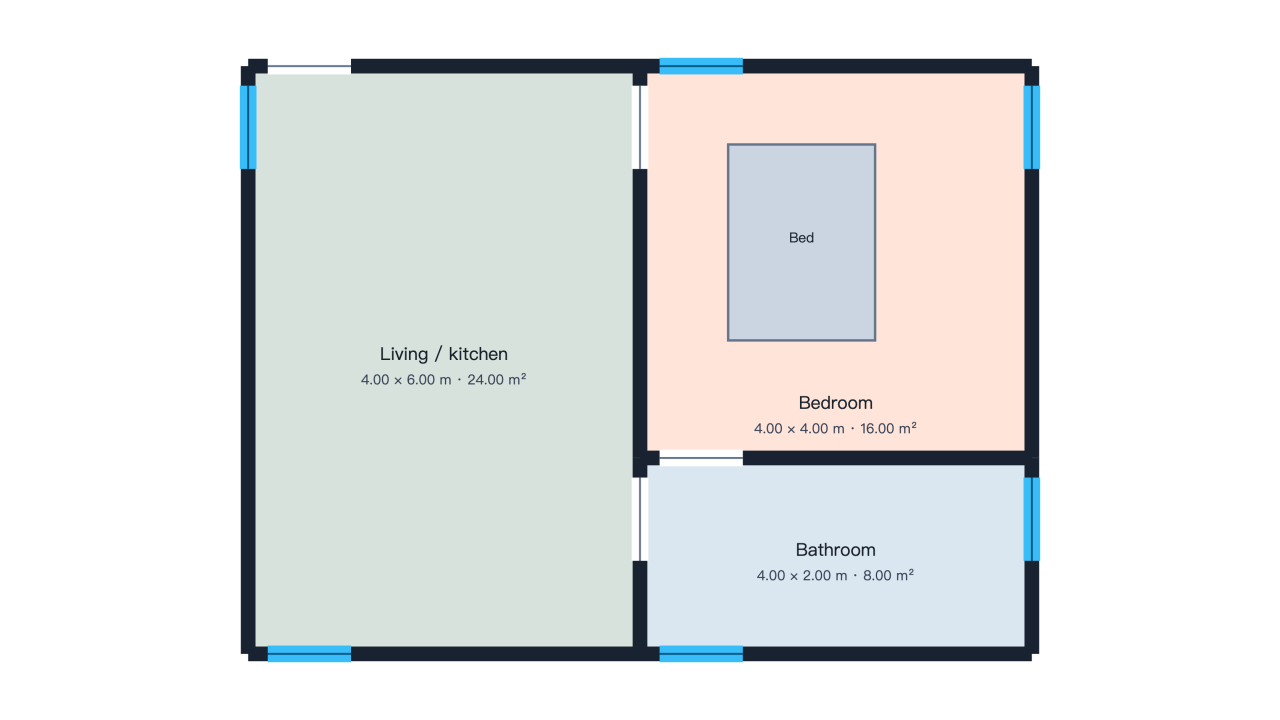
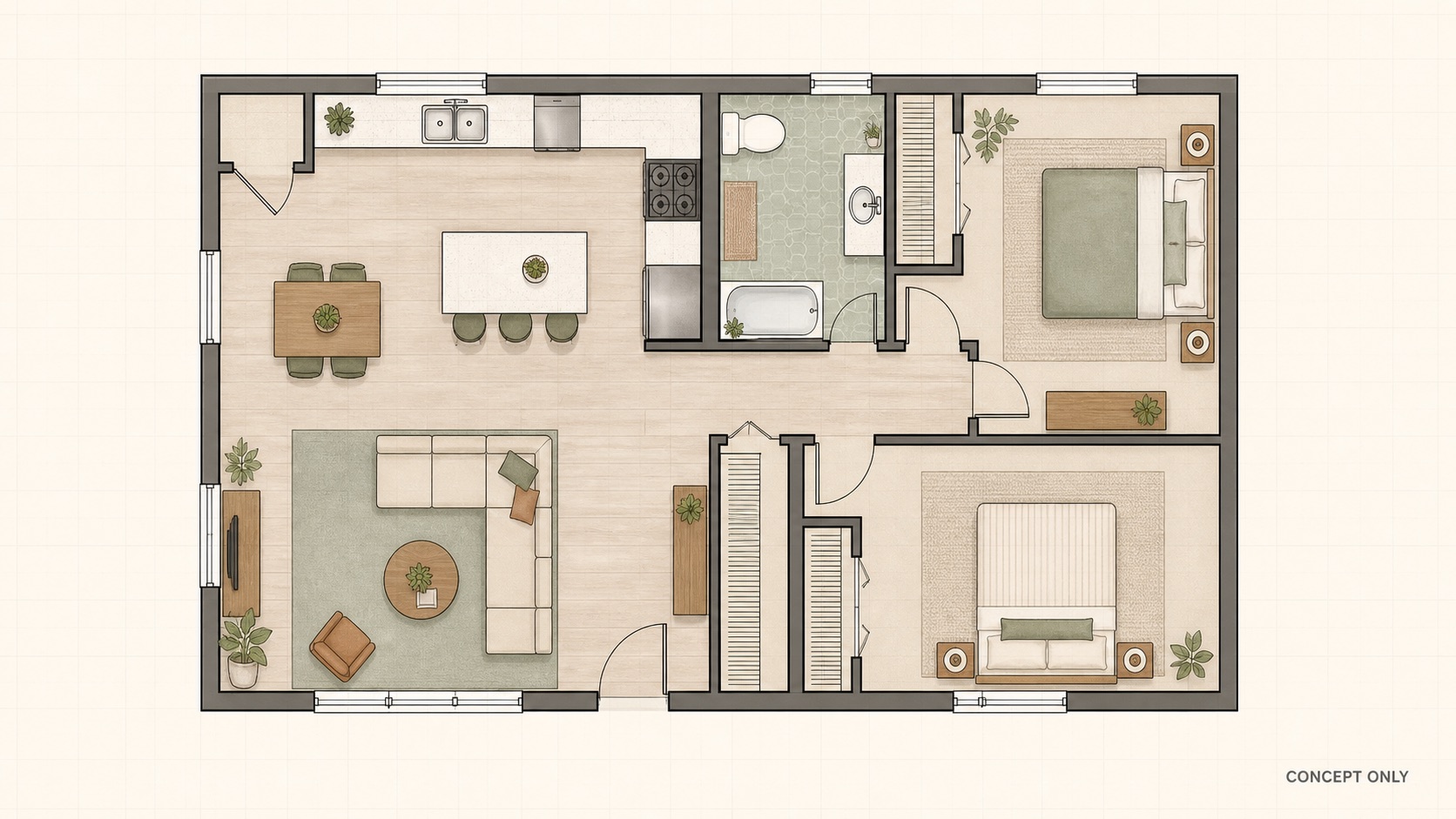
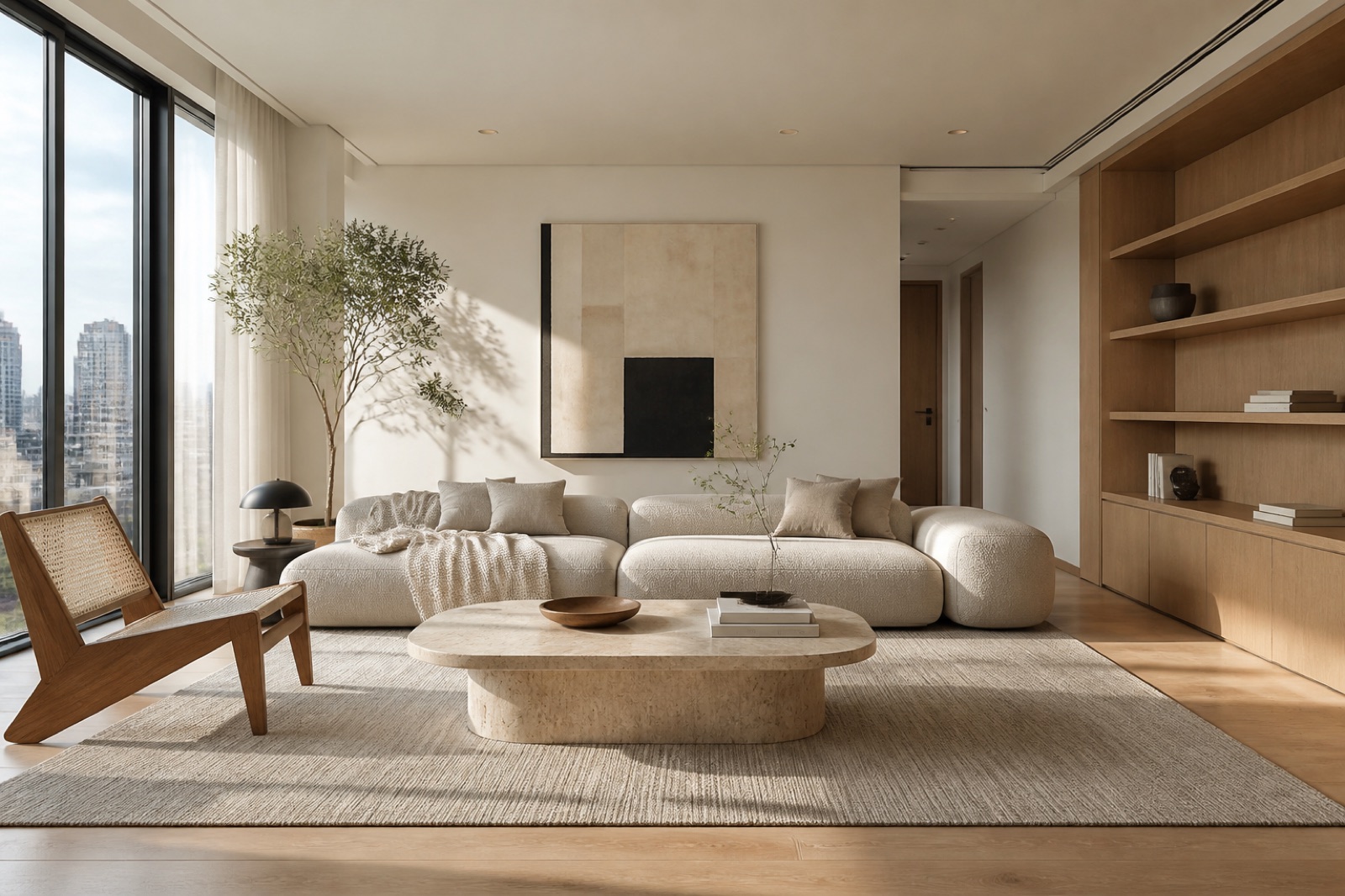
Moving a 3D floor plan reveals relationships that are easy to miss from above. The preview builds walls, door and window openings, and furniture from the current geometry, so the spatial view stays connected to the layout you are editing.
Explore this tool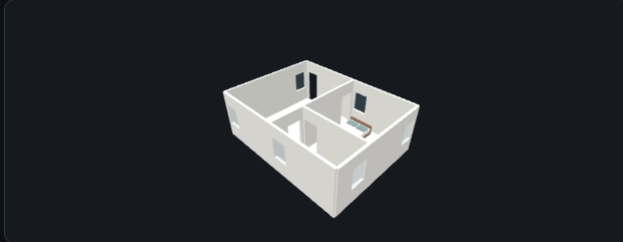
%3C%2Ftitle%3E%3Crect%20x%3D%22-0.6749999999999999%22%20y%3D%22-0.6749999999999999%22%20width%3D%227.3500000000000005%22%20height%3D%226.3500000000000005%22%20fill%3D%22white%22%2F%3E%0A%3Crect%20x%3D%220%22%20y%3D%220%22%20width%3D%224%22%20height%3D%225%22%20fill%3D%22%23d8e2dc%22%2F%3E%0A%3Crect%20x%3D%224%22%20y%3D%220%22%20width%3D%222%22%20height%3D%223%22%20fill%3D%22%23ffe5d9%22%2F%3E%0A%3Crect%20x%3D%224%22%20y%3D%223%22%20width%3D%222%22%20height%3D%222%22%20fill%3D%22%23dbe7f0%22%2F%3E%0A%3Cline%20x1%3D%220%22%20y1%3D%220%22%20x2%3D%224%22%20y2%3D%220%22%20stroke%3D%22%23182230%22%20stroke-width%3D%220.15%22%2F%3E%0A%3Cline%20x1%3D%224%22%20y1%3D%220%22%20x2%3D%226%22%20y2%3D%220%22%20stroke%3D%22%23182230%22%20stroke-width%3D%220.15%22%2F%3E%0A%3Cline%20x1%3D%220%22%20y1%3D%225%22%20x2%3D%224%22%20y2%3D%225%22%20stroke%3D%22%23182230%22%20stroke-width%3D%220.15%22%2F%3E%0A%3Cline%20x1%3D%224%22%20y1%3D%225%22%20x2%3D%226%22%20y2%3D%225%22%20stroke%3D%22%23182230%22%20stroke-width%3D%220.15%22%2F%3E%0A%3Cline%20x1%3D%220%22%20y1%3D%220%22%20x2%3D%220%22%20y2%3D%225%22%20stroke%3D%22%23182230%22%20stroke-width%3D%220.15%22%2F%3E%0A%3Cline%20x1%3D%224%22%20y1%3D%220%22%20x2%3D%224%22%20y2%3D%223%22%20stroke%3D%22%23182230%22%20stroke-width%3D%220.15%22%2F%3E%0A%3Cline%20x1%3D%224%22%20y1%3D%223%22%20x2%3D%224%22%20y2%3D%225%22%20stroke%3D%22%23182230%22%20stroke-width%3D%220.15%22%2F%3E%0A%3Cline%20x1%3D%224%22%20y1%3D%223%22%20x2%3D%226%22%20y2%3D%223%22%20stroke%3D%22%23182230%22%20stroke-width%3D%220.15%22%2F%3E%0A%3Cline%20x1%3D%226%22%20y1%3D%220%22%20x2%3D%226%22%20y2%3D%223%22%20stroke%3D%22%23182230%22%20stroke-width%3D%220.15%22%2F%3E%0A%3Cline%20x1%3D%226%22%20y1%3D%223%22%20x2%3D%226%22%20y2%3D%225%22%20stroke%3D%22%23182230%22%20stroke-width%3D%220.15%22%2F%3E%0A%3Cline%20x1%3D%220.2%22%20y1%3D%220%22%20x2%3D%221.05%22%20y2%3D%220%22%20stroke%3D%22white%22%20stroke-width%3D%220.16999999999999998%22%2F%3E%3Cline%20x1%3D%220.2%22%20y1%3D%220%22%20x2%3D%221.05%22%20y2%3D%220%22%20stroke%3D%22%2364748b%22%20stroke-width%3D%220.02%22%2F%3E%0A%3Cline%20x1%3D%224.2%22%20y1%3D%220%22%20x2%3D%225.05%22%20y2%3D%220%22%20stroke%3D%22%2338bdf8%22%20stroke-width%3D%220.16999999999999998%22%2F%3E%3Cline%20x1%3D%224.2%22%20y1%3D%220%22%20x2%3D%225.05%22%20y2%3D%220%22%20stroke%3D%22%23075985%22%20stroke-width%3D%220.02%22%2F%3E%0A%3Cline%20x1%3D%220.2%22%20y1%3D%225%22%20x2%3D%221.05%22%20y2%3D%225%22%20stroke%3D%22%2338bdf8%22%20stroke-width%3D%220.16999999999999998%22%2F%3E%3Cline%20x1%3D%220.2%22%20y1%3D%225%22%20x2%3D%221.05%22%20y2%3D%225%22%20stroke%3D%22%23075985%22%20stroke-width%3D%220.02%22%2F%3E%0A%3Cline%20x1%3D%224.2%22%20y1%3D%225%22%20x2%3D%225.05%22%20y2%3D%225%22%20stroke%3D%22%2338bdf8%22%20stroke-width%3D%220.16999999999999998%22%2F%3E%3Cline%20x1%3D%224.2%22%20y1%3D%225%22%20x2%3D%225.05%22%20y2%3D%225%22%20stroke%3D%22%23075985%22%20stroke-width%3D%220.02%22%2F%3E%0A%3Cline%20x1%3D%220%22%20y1%3D%220.2%22%20x2%3D%220%22%20y2%3D%221.05%22%20stroke%3D%22%2338bdf8%22%20stroke-width%3D%220.16999999999999998%22%2F%3E%3Cline%20x1%3D%220%22%20y1%3D%220.2%22%20x2%3D%220%22%20y2%3D%221.05%22%20stroke%3D%22%23075985%22%20stroke-width%3D%220.02%22%2F%3E%0A%3Cline%20x1%3D%224%22%20y1%3D%220.20000000000000004%22%20x2%3D%224%22%20y2%3D%221.05%22%20stroke%3D%22white%22%20stroke-width%3D%220.16999999999999998%22%2F%3E%3Cline%20x1%3D%224%22%20y1%3D%220.20000000000000004%22%20x2%3D%224%22%20y2%3D%221.05%22%20stroke%3D%22%2364748b%22%20stroke-width%3D%220.02%22%2F%3E%0A%3Cline%20x1%3D%224%22%20y1%3D%223.2%22%20x2%3D%224%22%20y2%3D%224.05%22%20stroke%3D%22white%22%20stroke-width%3D%220.16999999999999998%22%2F%3E%3Cline%20x1%3D%224%22%20y1%3D%223.2%22%20x2%3D%224%22%20y2%3D%224.05%22%20stroke%3D%22%2364748b%22%20stroke-width%3D%220.02%22%2F%3E%0A%3Cline%20x1%3D%224.2%22%20y1%3D%223%22%20x2%3D%225.05%22%20y2%3D%223%22%20stroke%3D%22white%22%20stroke-width%3D%220.16999999999999998%22%2F%3E%3Cline%20x1%3D%224.2%22%20y1%3D%223%22%20x2%3D%225.05%22%20y2%3D%223%22%20stroke%3D%22%2364748b%22%20stroke-width%3D%220.02%22%2F%3E%0A%3Cline%20x1%3D%226%22%20y1%3D%220.20000000000000004%22%20x2%3D%226%22%20y2%3D%221.05%22%20stroke%3D%22%2338bdf8%22%20stroke-width%3D%220.16999999999999998%22%2F%3E%3Cline%20x1%3D%226%22%20y1%3D%220.20000000000000004%22%20x2%3D%226%22%20y2%3D%221.05%22%20stroke%3D%22%23075985%22%20stroke-width%3D%220.02%22%2F%3E%0A%3Cline%20x1%3D%226%22%20y1%3D%223.2%22%20x2%3D%226%22%20y2%3D%224.05%22%20stroke%3D%22%2338bdf8%22%20stroke-width%3D%220.16999999999999998%22%2F%3E%3Cline%20x1%3D%226%22%20y1%3D%223.2%22%20x2%3D%226%22%20y2%3D%224.05%22%20stroke%3D%22%23075985%22%20stroke-width%3D%220.02%22%2F%3E%0A%3Cg%20transform%3D%22rotate(0%201.05%201.3)%22%3E%3Crect%20x%3D%220.3%22%20y%3D%220.3%22%20width%3D%221.5%22%20height%3D%222%22%20fill%3D%22%23cbd5e1%22%20stroke%3D%22%2364748b%22%20stroke-width%3D%220.025%22%2F%3E%3Ctext%20x%3D%221.05%22%20y%3D%221.3%22%20text-anchor%3D%22middle%22%20font-size%3D%220.14%22%20font-family%3D%22sans-serif%22%20fill%3D%22%23182230%22%3EBed%3C%2Ftext%3E%3C%2Fg%3E%0A%3Cg%3E%3Crect%20x%3D%220.8%22%20y%3D%222.29%22%20width%3D%222.4%22%20height%3D%22.55%22%20rx%3D%22.06%22%20fill%3D%22%23d8e2dc%22%20fill-opacity%3D%22.9%22%2F%3E%3Ctext%20x%3D%222%22%20y%3D%222.5%22%20text-anchor%3D%22middle%22%20font-family%3D%22sans-serif%22%20font-size%3D%220.18%22%20fill%3D%22%2317202a%22%3ELiving%20%2F%20sleeping%3C%2Ftext%3E%3Ctext%20x%3D%222%22%20y%3D%222.75%22%20text-anchor%3D%22middle%22%20font-family%3D%22sans-serif%22%20font-size%3D%220.14%22%20fill%3D%22%23344054%22%3E4.00%20%C3%97%205.00%20m%20%C2%B7%2020.00%20m%C2%B2%3C%2Ftext%3E%3C%2Fg%3E%0A%3Cg%3E%3Crect%20x%3D%224.05%22%20y%3D%221.29%22%20width%3D%221.9%22%20height%3D%22.55%22%20rx%3D%22.06%22%20fill%3D%22%23ffe5d9%22%20fill-opacity%3D%22.9%22%2F%3E%3Ctext%20x%3D%225%22%20y%3D%221.5%22%20text-anchor%3D%22middle%22%20font-family%3D%22sans-serif%22%20font-size%3D%220.16666666666666666%22%20fill%3D%22%2317202a%22%3EKitchen%3C%2Ftext%3E%3Ctext%20x%3D%225%22%20y%3D%221.75%22%20text-anchor%3D%22middle%22%20font-family%3D%22sans-serif%22%20font-size%3D%220.14%22%20fill%3D%22%23344054%22%3E2.00%20%C3%97%203.00%20m%20%C2%B7%206.00%20m%C2%B2%3C%2Ftext%3E%3C%2Fg%3E%0A%3Cg%3E%3Crect%20x%3D%224.05%22%20y%3D%223.79%22%20width%3D%221.9%22%20height%3D%22.55%22%20rx%3D%22.06%22%20fill%3D%22%23dbe7f0%22%20fill-opacity%3D%22.9%22%2F%3E%3Ctext%20x%3D%225%22%20y%3D%224%22%20text-anchor%3D%22middle%22%20font-family%3D%22sans-serif%22%20font-size%3D%220.16666666666666666%22%20fill%3D%22%2317202a%22%3EBathroom%3C%2Ftext%3E%3Ctext%20x%3D%225%22%20y%3D%224.25%22%20text-anchor%3D%22middle%22%20font-family%3D%22sans-serif%22%20font-size%3D%220.14%22%20fill%3D%22%23344054%22%3E2.00%20%C3%97%202.00%20m%20%C2%B7%204.00%20m%C2%B2%3C%2Ftext%3E%3C%2Fg%3E%0A%3C%2Fsvg%3E)
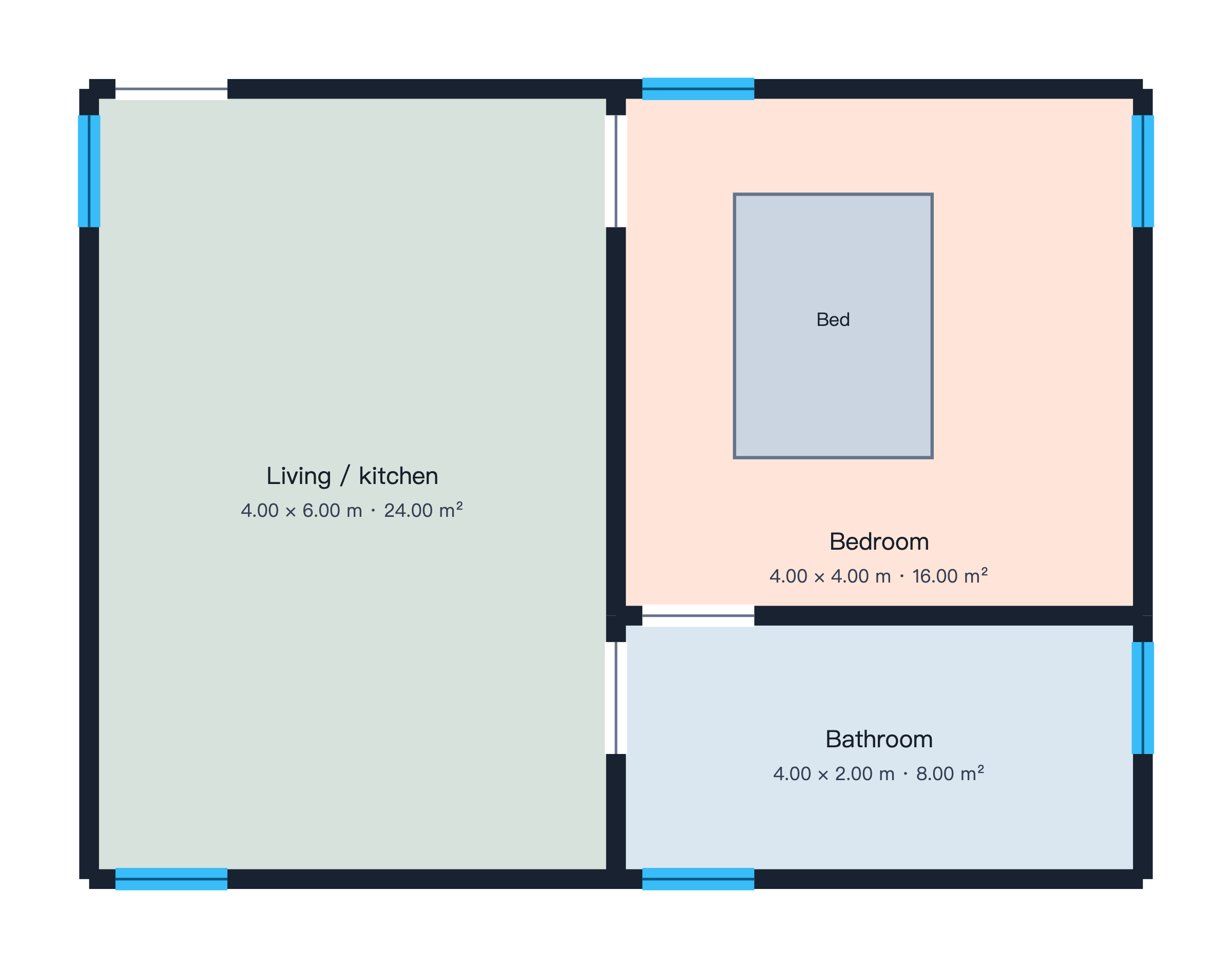
%3C%2Ftitle%3E%3Crect%20x%3D%22-0.6749999999999999%22%20y%3D%22-0.6749999999999999%22%20width%3D%229.349999999999998%22%20height%3D%227.3500000000000005%22%20fill%3D%22white%22%2F%3E%0A%3Crect%20x%3D%220%22%20y%3D%220%22%20width%3D%224%22%20height%3D%226%22%20fill%3D%22%23d8e2dc%22%2F%3E%0A%3Crect%20x%3D%224%22%20y%3D%220%22%20width%3D%224%22%20height%3D%224%22%20fill%3D%22%23ffe5d9%22%2F%3E%0A%3Crect%20x%3D%224%22%20y%3D%224%22%20width%3D%224%22%20height%3D%222%22%20fill%3D%22%23dbe7f0%22%2F%3E%0A%3Cline%20x1%3D%220%22%20y1%3D%220%22%20x2%3D%224%22%20y2%3D%220%22%20stroke%3D%22%23182230%22%20stroke-width%3D%220.15%22%2F%3E%0A%3Cline%20x1%3D%224%22%20y1%3D%220%22%20x2%3D%228%22%20y2%3D%220%22%20stroke%3D%22%23182230%22%20stroke-width%3D%220.15%22%2F%3E%0A%3Cline%20x1%3D%220%22%20y1%3D%226%22%20x2%3D%224%22%20y2%3D%226%22%20stroke%3D%22%23182230%22%20stroke-width%3D%220.15%22%2F%3E%0A%3Cline%20x1%3D%224%22%20y1%3D%226%22%20x2%3D%228%22%20y2%3D%226%22%20stroke%3D%22%23182230%22%20stroke-width%3D%220.15%22%2F%3E%0A%3Cline%20x1%3D%220%22%20y1%3D%220%22%20x2%3D%220%22%20y2%3D%226%22%20stroke%3D%22%23182230%22%20stroke-width%3D%220.15%22%2F%3E%0A%3Cline%20x1%3D%224%22%20y1%3D%220%22%20x2%3D%224%22%20y2%3D%224%22%20stroke%3D%22%23182230%22%20stroke-width%3D%220.15%22%2F%3E%0A%3Cline%20x1%3D%224%22%20y1%3D%224%22%20x2%3D%224%22%20y2%3D%226%22%20stroke%3D%22%23182230%22%20stroke-width%3D%220.15%22%2F%3E%0A%3Cline%20x1%3D%224%22%20y1%3D%224%22%20x2%3D%228%22%20y2%3D%224%22%20stroke%3D%22%23182230%22%20stroke-width%3D%220.15%22%2F%3E%0A%3Cline%20x1%3D%228%22%20y1%3D%220%22%20x2%3D%228%22%20y2%3D%224%22%20stroke%3D%22%23182230%22%20stroke-width%3D%220.15%22%2F%3E%0A%3Cline%20x1%3D%228%22%20y1%3D%224%22%20x2%3D%228%22%20y2%3D%226%22%20stroke%3D%22%23182230%22%20stroke-width%3D%220.15%22%2F%3E%0A%3Cline%20x1%3D%220.2%22%20y1%3D%220%22%20x2%3D%221.05%22%20y2%3D%220%22%20stroke%3D%22white%22%20stroke-width%3D%220.16999999999999998%22%2F%3E%3Cline%20x1%3D%220.2%22%20y1%3D%220%22%20x2%3D%221.05%22%20y2%3D%220%22%20stroke%3D%22%2364748b%22%20stroke-width%3D%220.02%22%2F%3E%0A%3Cline%20x1%3D%224.2%22%20y1%3D%220%22%20x2%3D%225.05%22%20y2%3D%220%22%20stroke%3D%22%2338bdf8%22%20stroke-width%3D%220.16999999999999998%22%2F%3E%3Cline%20x1%3D%224.2%22%20y1%3D%220%22%20x2%3D%225.05%22%20y2%3D%220%22%20stroke%3D%22%23075985%22%20stroke-width%3D%220.02%22%2F%3E%0A%3Cline%20x1%3D%220.2%22%20y1%3D%226%22%20x2%3D%221.05%22%20y2%3D%226%22%20stroke%3D%22%2338bdf8%22%20stroke-width%3D%220.16999999999999998%22%2F%3E%3Cline%20x1%3D%220.2%22%20y1%3D%226%22%20x2%3D%221.05%22%20y2%3D%226%22%20stroke%3D%22%23075985%22%20stroke-width%3D%220.02%22%2F%3E%0A%3Cline%20x1%3D%224.2%22%20y1%3D%226%22%20x2%3D%225.05%22%20y2%3D%226%22%20stroke%3D%22%2338bdf8%22%20stroke-width%3D%220.16999999999999998%22%2F%3E%3Cline%20x1%3D%224.2%22%20y1%3D%226%22%20x2%3D%225.05%22%20y2%3D%226%22%20stroke%3D%22%23075985%22%20stroke-width%3D%220.02%22%2F%3E%0A%3Cline%20x1%3D%220%22%20y1%3D%220.20000000000000004%22%20x2%3D%220%22%20y2%3D%221.05%22%20stroke%3D%22%2338bdf8%22%20stroke-width%3D%220.16999999999999998%22%2F%3E%3Cline%20x1%3D%220%22%20y1%3D%220.20000000000000004%22%20x2%3D%220%22%20y2%3D%221.05%22%20stroke%3D%22%23075985%22%20stroke-width%3D%220.02%22%2F%3E%0A%3Cline%20x1%3D%224%22%20y1%3D%220.2%22%20x2%3D%224%22%20y2%3D%221.05%22%20stroke%3D%22white%22%20stroke-width%3D%220.16999999999999998%22%2F%3E%3Cline%20x1%3D%224%22%20y1%3D%220.2%22%20x2%3D%224%22%20y2%3D%221.05%22%20stroke%3D%22%2364748b%22%20stroke-width%3D%220.02%22%2F%3E%0A%3Cline%20x1%3D%224%22%20y1%3D%224.2%22%20x2%3D%224%22%20y2%3D%225.05%22%20stroke%3D%22white%22%20stroke-width%3D%220.16999999999999998%22%2F%3E%3Cline%20x1%3D%224%22%20y1%3D%224.2%22%20x2%3D%224%22%20y2%3D%225.05%22%20stroke%3D%22%2364748b%22%20stroke-width%3D%220.02%22%2F%3E%0A%3Cline%20x1%3D%224.2%22%20y1%3D%224%22%20x2%3D%225.05%22%20y2%3D%224%22%20stroke%3D%22white%22%20stroke-width%3D%220.16999999999999998%22%2F%3E%3Cline%20x1%3D%224.2%22%20y1%3D%224%22%20x2%3D%225.05%22%20y2%3D%224%22%20stroke%3D%22%2364748b%22%20stroke-width%3D%220.02%22%2F%3E%0A%3Cline%20x1%3D%228%22%20y1%3D%220.2%22%20x2%3D%228%22%20y2%3D%221.05%22%20stroke%3D%22%2338bdf8%22%20stroke-width%3D%220.16999999999999998%22%2F%3E%3Cline%20x1%3D%228%22%20y1%3D%220.2%22%20x2%3D%228%22%20y2%3D%221.05%22%20stroke%3D%22%23075985%22%20stroke-width%3D%220.02%22%2F%3E%0A%3Cline%20x1%3D%228%22%20y1%3D%224.2%22%20x2%3D%228%22%20y2%3D%225.05%22%20stroke%3D%22%2338bdf8%22%20stroke-width%3D%220.16999999999999998%22%2F%3E%3Cline%20x1%3D%228%22%20y1%3D%224.2%22%20x2%3D%228%22%20y2%3D%225.05%22%20stroke%3D%22%23075985%22%20stroke-width%3D%220.02%22%2F%3E%0A%3Cg%20transform%3D%22rotate(0%205.05%201.3)%22%3E%3Crect%20x%3D%224.3%22%20y%3D%220.3%22%20width%3D%221.5%22%20height%3D%222%22%20fill%3D%22%23cbd5e1%22%20stroke%3D%22%2364748b%22%20stroke-width%3D%220.025%22%2F%3E%3Ctext%20x%3D%225.05%22%20y%3D%221.3%22%20text-anchor%3D%22middle%22%20font-size%3D%220.14%22%20font-family%3D%22sans-serif%22%20fill%3D%22%23182230%22%3EBed%3C%2Ftext%3E%3C%2Fg%3E%0A%3Cg%3E%3Crect%20x%3D%220.8%22%20y%3D%222.79%22%20width%3D%222.4%22%20height%3D%22.55%22%20rx%3D%22.06%22%20fill%3D%22%23d8e2dc%22%20fill-opacity%3D%22.9%22%2F%3E%3Ctext%20x%3D%222%22%20y%3D%223%22%20text-anchor%3D%22middle%22%20font-family%3D%22sans-serif%22%20font-size%3D%220.18%22%20fill%3D%22%2317202a%22%3ELiving%20%2F%20kitchen%3C%2Ftext%3E%3Ctext%20x%3D%222%22%20y%3D%223.25%22%20text-anchor%3D%22middle%22%20font-family%3D%22sans-serif%22%20font-size%3D%220.14%22%20fill%3D%22%23344054%22%3E4.00%20%C3%97%206.00%20m%20%C2%B7%2024.00%20m%C2%B2%3C%2Ftext%3E%3C%2Fg%3E%0A%3Cg%3E%3Crect%20x%3D%224.8%22%20y%3D%223.29%22%20width%3D%222.4%22%20height%3D%22.55%22%20rx%3D%22.06%22%20fill%3D%22%23ffe5d9%22%20fill-opacity%3D%22.9%22%2F%3E%3Ctext%20x%3D%226%22%20y%3D%223.5%22%20text-anchor%3D%22middle%22%20font-family%3D%22sans-serif%22%20font-size%3D%220.18%22%20fill%3D%22%2317202a%22%3EBedroom%3C%2Ftext%3E%3Ctext%20x%3D%226%22%20y%3D%223.75%22%20text-anchor%3D%22middle%22%20font-family%3D%22sans-serif%22%20font-size%3D%220.14%22%20fill%3D%22%23344054%22%3E4.00%20%C3%97%204.00%20m%20%C2%B7%2016.00%20m%C2%B2%3C%2Ftext%3E%3C%2Fg%3E%0A%3Cg%3E%3Crect%20x%3D%224.8%22%20y%3D%224.79%22%20width%3D%222.4%22%20height%3D%22.55%22%20rx%3D%22.06%22%20fill%3D%22%23dbe7f0%22%20fill-opacity%3D%22.9%22%2F%3E%3Ctext%20x%3D%226%22%20y%3D%225%22%20text-anchor%3D%22middle%22%20font-family%3D%22sans-serif%22%20font-size%3D%220.18%22%20fill%3D%22%2317202a%22%3EBathroom%3C%2Ftext%3E%3Ctext%20x%3D%226%22%20y%3D%225.25%22%20text-anchor%3D%22middle%22%20font-family%3D%22sans-serif%22%20font-size%3D%220.14%22%20fill%3D%22%23344054%22%3E4.00%20%C3%97%202.00%20m%20%C2%B7%208.00%20m%C2%B2%3C%2Ftext%3E%3C%2Fg%3E%0A%3C%2Fsvg%3E)
%3C%2Ftitle%3E%3Crect%20x%3D%22-0.6749999999999999%22%20y%3D%22-0.6749999999999999%22%20width%3D%229.349999999999998%22%20height%3D%229.349999999999998%22%20fill%3D%22white%22%2F%3E%0A%3Crect%20x%3D%220%22%20y%3D%220%22%20width%3D%224%22%20height%3D%224%22%20fill%3D%22%23d8e2dc%22%2F%3E%0A%3Crect%20x%3D%224%22%20y%3D%220%22%20width%3D%224%22%20height%3D%224%22%20fill%3D%22%23ffe5d9%22%2F%3E%0A%3Crect%20x%3D%220%22%20y%3D%224%22%20width%3D%224%22%20height%3D%224%22%20fill%3D%22%23dbe7f0%22%2F%3E%0A%3Crect%20x%3D%224%22%20y%3D%224%22%20width%3D%224%22%20height%3D%224%22%20fill%3D%22%23f5e6b8%22%2F%3E%0A%3Cline%20x1%3D%220%22%20y1%3D%220%22%20x2%3D%224%22%20y2%3D%220%22%20stroke%3D%22%23182230%22%20stroke-width%3D%220.15%22%2F%3E%0A%3Cline%20x1%3D%224%22%20y1%3D%220%22%20x2%3D%228%22%20y2%3D%220%22%20stroke%3D%22%23182230%22%20stroke-width%3D%220.15%22%2F%3E%0A%3Cline%20x1%3D%220%22%20y1%3D%224%22%20x2%3D%224%22%20y2%3D%224%22%20stroke%3D%22%23182230%22%20stroke-width%3D%220.15%22%2F%3E%0A%3Cline%20x1%3D%224%22%20y1%3D%224%22%20x2%3D%228%22%20y2%3D%224%22%20stroke%3D%22%23182230%22%20stroke-width%3D%220.15%22%2F%3E%0A%3Cline%20x1%3D%220%22%20y1%3D%220%22%20x2%3D%220%22%20y2%3D%224%22%20stroke%3D%22%23182230%22%20stroke-width%3D%220.15%22%2F%3E%0A%3Cline%20x1%3D%220%22%20y1%3D%224%22%20x2%3D%220%22%20y2%3D%228%22%20stroke%3D%22%23182230%22%20stroke-width%3D%220.15%22%2F%3E%0A%3Cline%20x1%3D%224%22%20y1%3D%220%22%20x2%3D%224%22%20y2%3D%224%22%20stroke%3D%22%23182230%22%20stroke-width%3D%220.15%22%2F%3E%0A%3Cline%20x1%3D%224%22%20y1%3D%224%22%20x2%3D%224%22%20y2%3D%228%22%20stroke%3D%22%23182230%22%20stroke-width%3D%220.15%22%2F%3E%0A%3Cline%20x1%3D%228%22%20y1%3D%220%22%20x2%3D%228%22%20y2%3D%224%22%20stroke%3D%22%23182230%22%20stroke-width%3D%220.15%22%2F%3E%0A%3Cline%20x1%3D%228%22%20y1%3D%224%22%20x2%3D%228%22%20y2%3D%228%22%20stroke%3D%22%23182230%22%20stroke-width%3D%220.15%22%2F%3E%0A%3Cline%20x1%3D%220%22%20y1%3D%228%22%20x2%3D%224%22%20y2%3D%228%22%20stroke%3D%22%23182230%22%20stroke-width%3D%220.15%22%2F%3E%0A%3Cline%20x1%3D%224%22%20y1%3D%228%22%20x2%3D%228%22%20y2%3D%228%22%20stroke%3D%22%23182230%22%20stroke-width%3D%220.15%22%2F%3E%0A%3Cline%20x1%3D%220.2%22%20y1%3D%220%22%20x2%3D%221.05%22%20y2%3D%220%22%20stroke%3D%22white%22%20stroke-width%3D%220.16999999999999998%22%2F%3E%3Cline%20x1%3D%220.2%22%20y1%3D%220%22%20x2%3D%221.05%22%20y2%3D%220%22%20stroke%3D%22%2364748b%22%20stroke-width%3D%220.02%22%2F%3E%0A%3Cline%20x1%3D%224.2%22%20y1%3D%220%22%20x2%3D%225.05%22%20y2%3D%220%22%20stroke%3D%22%2338bdf8%22%20stroke-width%3D%220.16999999999999998%22%2F%3E%3Cline%20x1%3D%224.2%22%20y1%3D%220%22%20x2%3D%225.05%22%20y2%3D%220%22%20stroke%3D%22%23075985%22%20stroke-width%3D%220.02%22%2F%3E%0A%3Cline%20x1%3D%220.2%22%20y1%3D%224%22%20x2%3D%221.05%22%20y2%3D%224%22%20stroke%3D%22white%22%20stroke-width%3D%220.16999999999999998%22%2F%3E%3Cline%20x1%3D%220.2%22%20y1%3D%224%22%20x2%3D%221.05%22%20y2%3D%224%22%20stroke%3D%22%2364748b%22%20stroke-width%3D%220.02%22%2F%3E%0A%3Cline%20x1%3D%224.2%22%20y1%3D%224%22%20x2%3D%225.05%22%20y2%3D%224%22%20stroke%3D%22white%22%20stroke-width%3D%220.16999999999999998%22%2F%3E%3Cline%20x1%3D%224.2%22%20y1%3D%224%22%20x2%3D%225.05%22%20y2%3D%224%22%20stroke%3D%22%2364748b%22%20stroke-width%3D%220.02%22%2F%3E%0A%3Cline%20x1%3D%220%22%20y1%3D%220.2%22%20x2%3D%220%22%20y2%3D%221.05%22%20stroke%3D%22%2338bdf8%22%20stroke-width%3D%220.16999999999999998%22%2F%3E%3Cline%20x1%3D%220%22%20y1%3D%220.2%22%20x2%3D%220%22%20y2%3D%221.05%22%20stroke%3D%22%23075985%22%20stroke-width%3D%220.02%22%2F%3E%0A%3Cline%20x1%3D%220%22%20y1%3D%224.2%22%20x2%3D%220%22%20y2%3D%225.05%22%20stroke%3D%22%2338bdf8%22%20stroke-width%3D%220.16999999999999998%22%2F%3E%3Cline%20x1%3D%220%22%20y1%3D%224.2%22%20x2%3D%220%22%20y2%3D%225.05%22%20stroke%3D%22%23075985%22%20stroke-width%3D%220.02%22%2F%3E%0A%3Cline%20x1%3D%224%22%20y1%3D%220.2%22%20x2%3D%224%22%20y2%3D%221.05%22%20stroke%3D%22white%22%20stroke-width%3D%220.16999999999999998%22%2F%3E%3Cline%20x1%3D%224%22%20y1%3D%220.2%22%20x2%3D%224%22%20y2%3D%221.05%22%20stroke%3D%22%2364748b%22%20stroke-width%3D%220.02%22%2F%3E%0A%3Cline%20x1%3D%224%22%20y1%3D%224.2%22%20x2%3D%224%22%20y2%3D%225.05%22%20stroke%3D%22white%22%20stroke-width%3D%220.16999999999999998%22%2F%3E%3Cline%20x1%3D%224%22%20y1%3D%224.2%22%20x2%3D%224%22%20y2%3D%225.05%22%20stroke%3D%22%2364748b%22%20stroke-width%3D%220.02%22%2F%3E%0A%3Cline%20x1%3D%228%22%20y1%3D%220.2%22%20x2%3D%228%22%20y2%3D%221.05%22%20stroke%3D%22%2338bdf8%22%20stroke-width%3D%220.16999999999999998%22%2F%3E%3Cline%20x1%3D%228%22%20y1%3D%220.2%22%20x2%3D%228%22%20y2%3D%221.05%22%20stroke%3D%22%23075985%22%20stroke-width%3D%220.02%22%2F%3E%0A%3Cline%20x1%3D%228%22%20y1%3D%224.2%22%20x2%3D%228%22%20y2%3D%225.05%22%20stroke%3D%22%2338bdf8%22%20stroke-width%3D%220.16999999999999998%22%2F%3E%3Cline%20x1%3D%228%22%20y1%3D%224.2%22%20x2%3D%228%22%20y2%3D%225.05%22%20stroke%3D%22%23075985%22%20stroke-width%3D%220.02%22%2F%3E%0A%3Cline%20x1%3D%220.2%22%20y1%3D%228%22%20x2%3D%221.05%22%20y2%3D%228%22%20stroke%3D%22%2338bdf8%22%20stroke-width%3D%220.16999999999999998%22%2F%3E%3Cline%20x1%3D%220.2%22%20y1%3D%228%22%20x2%3D%221.05%22%20y2%3D%228%22%20stroke%3D%22%23075985%22%20stroke-width%3D%220.02%22%2F%3E%0A%3Cline%20x1%3D%224.2%22%20y1%3D%228%22%20x2%3D%225.05%22%20y2%3D%228%22%20stroke%3D%22%2338bdf8%22%20stroke-width%3D%220.16999999999999998%22%2F%3E%3Cline%20x1%3D%224.2%22%20y1%3D%228%22%20x2%3D%225.05%22%20y2%3D%228%22%20stroke%3D%22%23075985%22%20stroke-width%3D%220.02%22%2F%3E%0A%3Cg%20transform%3D%22rotate(0%204.75%205.8)%22%3E%3Crect%20x%3D%224.2%22%20y%3D%224.3%22%20width%3D%221.1%22%20height%3D%223%22%20fill%3D%22%23cbd5e1%22%20stroke%3D%22%2364748b%22%20stroke-width%3D%220.025%22%2F%3E%3Ctext%20x%3D%224.75%22%20y%3D%225.8%22%20text-anchor%3D%22middle%22%20font-size%3D%220.14%22%20font-family%3D%22sans-serif%22%20fill%3D%22%23182230%22%3EStair%20placeholder%3C%2Ftext%3E%3C%2Fg%3E%0A%3Cg%3E%3Crect%20x%3D%220.8%22%20y%3D%221.79%22%20width%3D%222.4%22%20height%3D%22.55%22%20rx%3D%22.06%22%20fill%3D%22%23d8e2dc%22%20fill-opacity%3D%22.9%22%2F%3E%3Ctext%20x%3D%222%22%20y%3D%222%22%20text-anchor%3D%22middle%22%20font-family%3D%22sans-serif%22%20font-size%3D%220.18%22%20fill%3D%22%2317202a%22%3ELiving%3C%2Ftext%3E%3Ctext%20x%3D%222%22%20y%3D%222.25%22%20text-anchor%3D%22middle%22%20font-family%3D%22sans-serif%22%20font-size%3D%220.14%22%20fill%3D%22%23344054%22%3E4.00%20%C3%97%204.00%20m%20%C2%B7%2016.00%20m%C2%B2%3C%2Ftext%3E%3C%2Fg%3E%0A%3Cg%3E%3Crect%20x%3D%224.8%22%20y%3D%221.79%22%20width%3D%222.4%22%20height%3D%22.55%22%20rx%3D%22.06%22%20fill%3D%22%23ffe5d9%22%20fill-opacity%3D%22.9%22%2F%3E%3Ctext%20x%3D%226%22%20y%3D%222%22%20text-anchor%3D%22middle%22%20font-family%3D%22sans-serif%22%20font-size%3D%220.18%22%20fill%3D%22%2317202a%22%3EKitchen%20%2F%20dining%3C%2Ftext%3E%3Ctext%20x%3D%226%22%20y%3D%222.25%22%20text-anchor%3D%22middle%22%20font-family%3D%22sans-serif%22%20font-size%3D%220.14%22%20fill%3D%22%23344054%22%3E4.00%20%C3%97%204.00%20m%20%C2%B7%2016.00%20m%C2%B2%3C%2Ftext%3E%3C%2Fg%3E%0A%3Cg%3E%3Crect%20x%3D%220.8%22%20y%3D%225.79%22%20width%3D%222.4%22%20height%3D%22.55%22%20rx%3D%22.06%22%20fill%3D%22%23dbe7f0%22%20fill-opacity%3D%22.9%22%2F%3E%3Ctext%20x%3D%222%22%20y%3D%226%22%20text-anchor%3D%22middle%22%20font-family%3D%22sans-serif%22%20font-size%3D%220.18%22%20fill%3D%22%2317202a%22%3EStudy%3C%2Ftext%3E%3Ctext%20x%3D%222%22%20y%3D%226.25%22%20text-anchor%3D%22middle%22%20font-family%3D%22sans-serif%22%20font-size%3D%220.14%22%20fill%3D%22%23344054%22%3E4.00%20%C3%97%204.00%20m%20%C2%B7%2016.00%20m%C2%B2%3C%2Ftext%3E%3C%2Fg%3E%0A%3Cg%3E%3Crect%20x%3D%224.8%22%20y%3D%227.29%22%20width%3D%222.4%22%20height%3D%22.55%22%20rx%3D%22.06%22%20fill%3D%22%23f5e6b8%22%20fill-opacity%3D%22.9%22%2F%3E%3Ctext%20x%3D%226%22%20y%3D%227.5%22%20text-anchor%3D%22middle%22%20font-family%3D%22sans-serif%22%20font-size%3D%220.18%22%20fill%3D%22%2317202a%22%3EEntry%20%2F%20stairs%3C%2Ftext%3E%3Ctext%20x%3D%226%22%20y%3D%227.75%22%20text-anchor%3D%22middle%22%20font-family%3D%22sans-serif%22%20font-size%3D%220.14%22%20fill%3D%22%23344054%22%3E4.00%20%C3%97%204.00%20m%20%C2%B7%2016.00%20m%C2%B2%3C%2Ftext%3E%3C%2Fg%3E%0A%3C%2Fsvg%3E)
%3C%2Ftitle%3E%3Crect%20x%3D%22-0.6749999999999999%22%20y%3D%22-0.6749999999999999%22%20width%3D%2211.349999999999998%22%20height%3D%2226.349999999999998%22%20fill%3D%22white%22%2F%3E%0A%3Crect%20x%3D%220%22%20y%3D%220%22%20width%3D%225%22%20height%3D%225%22%20fill%3D%22%23d8e2dc%22%2F%3E%0A%3Crect%20x%3D%225%22%20y%3D%220%22%20width%3D%225%22%20height%3D%225%22%20fill%3D%22%23ffe5d9%22%2F%3E%0A%3Crect%20x%3D%220%22%20y%3D%225%22%20width%3D%225%22%20height%3D%225%22%20fill%3D%22%23dbe7f0%22%2F%3E%0A%3Crect%20x%3D%225%22%20y%3D%225%22%20width%3D%225%22%20height%3D%225%22%20fill%3D%22%23f5e6b8%22%2F%3E%0A%3Crect%20x%3D%220%22%20y%3D%2210%22%20width%3D%225%22%20height%3D%225%22%20fill%3D%22%23e3d5ec%22%2F%3E%0A%3Crect%20x%3D%225%22%20y%3D%2210%22%20width%3D%225%22%20height%3D%225%22%20fill%3D%22%23d8e2dc%22%2F%3E%0A%3Crect%20x%3D%220%22%20y%3D%2215%22%20width%3D%225%22%20height%3D%225%22%20fill%3D%22%23ffe5d9%22%2F%3E%0A%3Crect%20x%3D%225%22%20y%3D%2215%22%20width%3D%225%22%20height%3D%225%22%20fill%3D%22%23dbe7f0%22%2F%3E%0A%3Crect%20x%3D%220%22%20y%3D%2220%22%20width%3D%225%22%20height%3D%225%22%20fill%3D%22%23f5e6b8%22%2F%3E%0A%3Crect%20x%3D%225%22%20y%3D%2220%22%20width%3D%225%22%20height%3D%225%22%20fill%3D%22%23e3d5ec%22%2F%3E%0A%3Cline%20x1%3D%220%22%20y1%3D%220%22%20x2%3D%225%22%20y2%3D%220%22%20stroke%3D%22%23182230%22%20stroke-width%3D%220.15%22%2F%3E%0A%3Cline%20x1%3D%225%22%20y1%3D%220%22%20x2%3D%2210%22%20y2%3D%220%22%20stroke%3D%22%23182230%22%20stroke-width%3D%220.15%22%2F%3E%0A%3Cline%20x1%3D%220%22%20y1%3D%225%22%20x2%3D%225%22%20y2%3D%225%22%20stroke%3D%22%23182230%22%20stroke-width%3D%220.15%22%2F%3E%0A%3Cline%20x1%3D%225%22%20y1%3D%225%22%20x2%3D%2210%22%20y2%3D%225%22%20stroke%3D%22%23182230%22%20stroke-width%3D%220.15%22%2F%3E%0A%3Cline%20x1%3D%220%22%20y1%3D%220%22%20x2%3D%220%22%20y2%3D%225%22%20stroke%3D%22%23182230%22%20stroke-width%3D%220.15%22%2F%3E%0A%3Cline%20x1%3D%220%22%20y1%3D%225%22%20x2%3D%220%22%20y2%3D%2210%22%20stroke%3D%22%23182230%22%20stroke-width%3D%220.15%22%2F%3E%0A%3Cline%20x1%3D%220%22%20y1%3D%2210%22%20x2%3D%220%22%20y2%3D%2215%22%20stroke%3D%22%23182230%22%20stroke-width%3D%220.15%22%2F%3E%0A%3Cline%20x1%3D%220%22%20y1%3D%2215%22%20x2%3D%220%22%20y2%3D%2220%22%20stroke%3D%22%23182230%22%20stroke-width%3D%220.15%22%2F%3E%0A%3Cline%20x1%3D%220%22%20y1%3D%2220%22%20x2%3D%220%22%20y2%3D%2225%22%20stroke%3D%22%23182230%22%20stroke-width%3D%220.15%22%2F%3E%0A%3Cline%20x1%3D%225%22%20y1%3D%220%22%20x2%3D%225%22%20y2%3D%225%22%20stroke%3D%22%23182230%22%20stroke-width%3D%220.15%22%2F%3E%0A%3Cline%20x1%3D%225%22%20y1%3D%225%22%20x2%3D%225%22%20y2%3D%2210%22%20stroke%3D%22%23182230%22%20stroke-width%3D%220.15%22%2F%3E%0A%3Cline%20x1%3D%225%22%20y1%3D%2210%22%20x2%3D%225%22%20y2%3D%2215%22%20stroke%3D%22%23182230%22%20stroke-width%3D%220.15%22%2F%3E%0A%3Cline%20x1%3D%225%22%20y1%3D%2215%22%20x2%3D%225%22%20y2%3D%2220%22%20stroke%3D%22%23182230%22%20stroke-width%3D%220.15%22%2F%3E%0A%3Cline%20x1%3D%225%22%20y1%3D%2220%22%20x2%3D%225%22%20y2%3D%2225%22%20stroke%3D%22%23182230%22%20stroke-width%3D%220.15%22%2F%3E%0A%3Cline%20x1%3D%2210%22%20y1%3D%220%22%20x2%3D%2210%22%20y2%3D%225%22%20stroke%3D%22%23182230%22%20stroke-width%3D%220.15%22%2F%3E%0A%3Cline%20x1%3D%2210%22%20y1%3D%225%22%20x2%3D%2210%22%20y2%3D%2210%22%20stroke%3D%22%23182230%22%20stroke-width%3D%220.15%22%2F%3E%0A%3Cline%20x1%3D%2210%22%20y1%3D%2210%22%20x2%3D%2210%22%20y2%3D%2215%22%20stroke%3D%22%23182230%22%20stroke-width%3D%220.15%22%2F%3E%0A%3Cline%20x1%3D%2210%22%20y1%3D%2215%22%20x2%3D%2210%22%20y2%3D%2220%22%20stroke%3D%22%23182230%22%20stroke-width%3D%220.15%22%2F%3E%0A%3Cline%20x1%3D%2210%22%20y1%3D%2220%22%20x2%3D%2210%22%20y2%3D%2225%22%20stroke%3D%22%23182230%22%20stroke-width%3D%220.15%22%2F%3E%0A%3Cline%20x1%3D%220%22%20y1%3D%2210%22%20x2%3D%225%22%20y2%3D%2210%22%20stroke%3D%22%23182230%22%20stroke-width%3D%220.15%22%2F%3E%0A%3Cline%20x1%3D%225%22%20y1%3D%2210%22%20x2%3D%2210%22%20y2%3D%2210%22%20stroke%3D%22%23182230%22%20stroke-width%3D%220.15%22%2F%3E%0A%3Cline%20x1%3D%220%22%20y1%3D%2215%22%20x2%3D%225%22%20y2%3D%2215%22%20stroke%3D%22%23182230%22%20stroke-width%3D%220.15%22%2F%3E%0A%3Cline%20x1%3D%225%22%20y1%3D%2215%22%20x2%3D%2210%22%20y2%3D%2215%22%20stroke%3D%22%23182230%22%20stroke-width%3D%220.15%22%2F%3E%0A%3Cline%20x1%3D%220%22%20y1%3D%2220%22%20x2%3D%225%22%20y2%3D%2220%22%20stroke%3D%22%23182230%22%20stroke-width%3D%220.15%22%2F%3E%0A%3Cline%20x1%3D%225%22%20y1%3D%2220%22%20x2%3D%2210%22%20y2%3D%2220%22%20stroke%3D%22%23182230%22%20stroke-width%3D%220.15%22%2F%3E%0A%3Cline%20x1%3D%220%22%20y1%3D%2225%22%20x2%3D%225%22%20y2%3D%2225%22%20stroke%3D%22%23182230%22%20stroke-width%3D%220.15%22%2F%3E%0A%3Cline%20x1%3D%225%22%20y1%3D%2225%22%20x2%3D%2210%22%20y2%3D%2225%22%20stroke%3D%22%23182230%22%20stroke-width%3D%220.15%22%2F%3E%0A%3Cline%20x1%3D%220.2%22%20y1%3D%220%22%20x2%3D%221.05%22%20y2%3D%220%22%20stroke%3D%22white%22%20stroke-width%3D%220.16999999999999998%22%2F%3E%3Cline%20x1%3D%220.2%22%20y1%3D%220%22%20x2%3D%221.05%22%20y2%3D%220%22%20stroke%3D%22%2364748b%22%20stroke-width%3D%220.02%22%2F%3E%0A%3Cline%20x1%3D%225.2%22%20y1%3D%220%22%20x2%3D%226.05%22%20y2%3D%220%22%20stroke%3D%22%2338bdf8%22%20stroke-width%3D%220.16999999999999998%22%2F%3E%3Cline%20x1%3D%225.2%22%20y1%3D%220%22%20x2%3D%226.05%22%20y2%3D%220%22%20stroke%3D%22%23075985%22%20stroke-width%3D%220.02%22%2F%3E%0A%3Cline%20x1%3D%220.2%22%20y1%3D%225%22%20x2%3D%221.05%22%20y2%3D%225%22%20stroke%3D%22white%22%20stroke-width%3D%220.16999999999999998%22%2F%3E%3Cline%20x1%3D%220.2%22%20y1%3D%225%22%20x2%3D%221.05%22%20y2%3D%225%22%20stroke%3D%22%2364748b%22%20stroke-width%3D%220.02%22%2F%3E%0A%3Cline%20x1%3D%225.2%22%20y1%3D%225%22%20x2%3D%226.05%22%20y2%3D%225%22%20stroke%3D%22white%22%20stroke-width%3D%220.16999999999999998%22%2F%3E%3Cline%20x1%3D%225.2%22%20y1%3D%225%22%20x2%3D%226.05%22%20y2%3D%225%22%20stroke%3D%22%2364748b%22%20stroke-width%3D%220.02%22%2F%3E%0A%3Cline%20x1%3D%220%22%20y1%3D%220.2%22%20x2%3D%220%22%20y2%3D%221.05%22%20stroke%3D%22%2338bdf8%22%20stroke-width%3D%220.16999999999999998%22%2F%3E%3Cline%20x1%3D%220%22%20y1%3D%220.2%22%20x2%3D%220%22%20y2%3D%221.05%22%20stroke%3D%22%23075985%22%20stroke-width%3D%220.02%22%2F%3E%0A%3Cline%20x1%3D%220%22%20y1%3D%225.2%22%20x2%3D%220%22%20y2%3D%226.05%22%20stroke%3D%22%2338bdf8%22%20stroke-width%3D%220.16999999999999998%22%2F%3E%3Cline%20x1%3D%220%22%20y1%3D%225.2%22%20x2%3D%220%22%20y2%3D%226.05%22%20stroke%3D%22%23075985%22%20stroke-width%3D%220.02%22%2F%3E%0A%3Cline%20x1%3D%220%22%20y1%3D%2210.2%22%20x2%3D%220%22%20y2%3D%2211.05%22%20stroke%3D%22%2338bdf8%22%20stroke-width%3D%220.16999999999999998%22%2F%3E%3Cline%20x1%3D%220%22%20y1%3D%2210.2%22%20x2%3D%220%22%20y2%3D%2211.05%22%20stroke%3D%22%23075985%22%20stroke-width%3D%220.02%22%2F%3E%0A%3Cline%20x1%3D%220%22%20y1%3D%2215.2%22%20x2%3D%220%22%20y2%3D%2216.05%22%20stroke%3D%22%2338bdf8%22%20stroke-width%3D%220.16999999999999998%22%2F%3E%3Cline%20x1%3D%220%22%20y1%3D%2215.2%22%20x2%3D%220%22%20y2%3D%2216.05%22%20stroke%3D%22%23075985%22%20stroke-width%3D%220.02%22%2F%3E%0A%3Cline%20x1%3D%220%22%20y1%3D%2220.2%22%20x2%3D%220%22%20y2%3D%2221.05%22%20stroke%3D%22%2338bdf8%22%20stroke-width%3D%220.16999999999999998%22%2F%3E%3Cline%20x1%3D%220%22%20y1%3D%2220.2%22%20x2%3D%220%22%20y2%3D%2221.05%22%20stroke%3D%22%23075985%22%20stroke-width%3D%220.02%22%2F%3E%0A%3Cline%20x1%3D%225%22%20y1%3D%220.2%22%20x2%3D%225%22%20y2%3D%221.05%22%20stroke%3D%22white%22%20stroke-width%3D%220.16999999999999998%22%2F%3E%3Cline%20x1%3D%225%22%20y1%3D%220.2%22%20x2%3D%225%22%20y2%3D%221.05%22%20stroke%3D%22%2364748b%22%20stroke-width%3D%220.02%22%2F%3E%0A%3Cline%20x1%3D%225%22%20y1%3D%225.2%22%20x2%3D%225%22%20y2%3D%226.05%22%20stroke%3D%22white%22%20stroke-width%3D%220.16999999999999998%22%2F%3E%3Cline%20x1%3D%225%22%20y1%3D%225.2%22%20x2%3D%225%22%20y2%3D%226.05%22%20stroke%3D%22%2364748b%22%20stroke-width%3D%220.02%22%2F%3E%0A%3Cline%20x1%3D%225%22%20y1%3D%2210.2%22%20x2%3D%225%22%20y2%3D%2211.05%22%20stroke%3D%22white%22%20stroke-width%3D%220.16999999999999998%22%2F%3E%3Cline%20x1%3D%225%22%20y1%3D%2210.2%22%20x2%3D%225%22%20y2%3D%2211.05%22%20stroke%3D%22%2364748b%22%20stroke-width%3D%220.02%22%2F%3E%0A%3Cline%20x1%3D%225%22%20y1%3D%2215.2%22%20x2%3D%225%22%20y2%3D%2216.05%22%20stroke%3D%22white%22%20stroke-width%3D%220.16999999999999998%22%2F%3E%3Cline%20x1%3D%225%22%20y1%3D%2215.2%22%20x2%3D%225%22%20y2%3D%2216.05%22%20stroke%3D%22%2364748b%22%20stroke-width%3D%220.02%22%2F%3E%0A%3Cline%20x1%3D%225%22%20y1%3D%2220.2%22%20x2%3D%225%22%20y2%3D%2221.05%22%20stroke%3D%22white%22%20stroke-width%3D%220.16999999999999998%22%2F%3E%3Cline%20x1%3D%225%22%20y1%3D%2220.2%22%20x2%3D%225%22%20y2%3D%2221.05%22%20stroke%3D%22%2364748b%22%20stroke-width%3D%220.02%22%2F%3E%0A%3Cline%20x1%3D%2210%22%20y1%3D%220.2%22%20x2%3D%2210%22%20y2%3D%221.05%22%20stroke%3D%22%2338bdf8%22%20stroke-width%3D%220.16999999999999998%22%2F%3E%3Cline%20x1%3D%2210%22%20y1%3D%220.2%22%20x2%3D%2210%22%20y2%3D%221.05%22%20stroke%3D%22%23075985%22%20stroke-width%3D%220.02%22%2F%3E%0A%3Cline%20x1%3D%2210%22%20y1%3D%225.2%22%20x2%3D%2210%22%20y2%3D%226.05%22%20stroke%3D%22%2338bdf8%22%20stroke-width%3D%220.16999999999999998%22%2F%3E%3Cline%20x1%3D%2210%22%20y1%3D%225.2%22%20x2%3D%2210%22%20y2%3D%226.05%22%20stroke%3D%22%23075985%22%20stroke-width%3D%220.02%22%2F%3E%0A%3Cline%20x1%3D%2210%22%20y1%3D%2210.2%22%20x2%3D%2210%22%20y2%3D%2211.05%22%20stroke%3D%22%2338bdf8%22%20stroke-width%3D%220.16999999999999998%22%2F%3E%3Cline%20x1%3D%2210%22%20y1%3D%2210.2%22%20x2%3D%2210%22%20y2%3D%2211.05%22%20stroke%3D%22%23075985%22%20stroke-width%3D%220.02%22%2F%3E%0A%3Cline%20x1%3D%2210%22%20y1%3D%2215.2%22%20x2%3D%2210%22%20y2%3D%2216.05%22%20stroke%3D%22%2338bdf8%22%20stroke-width%3D%220.16999999999999998%22%2F%3E%3Cline%20x1%3D%2210%22%20y1%3D%2215.2%22%20x2%3D%2210%22%20y2%3D%2216.05%22%20stroke%3D%22%23075985%22%20stroke-width%3D%220.02%22%2F%3E%0A%3Cline%20x1%3D%2210%22%20y1%3D%2220.2%22%20x2%3D%2210%22%20y2%3D%2221.05%22%20stroke%3D%22%2338bdf8%22%20stroke-width%3D%220.16999999999999998%22%2F%3E%3Cline%20x1%3D%2210%22%20y1%3D%2220.2%22%20x2%3D%2210%22%20y2%3D%2221.05%22%20stroke%3D%22%23075985%22%20stroke-width%3D%220.02%22%2F%3E%0A%3Cline%20x1%3D%220.2%22%20y1%3D%2210%22%20x2%3D%221.05%22%20y2%3D%2210%22%20stroke%3D%22white%22%20stroke-width%3D%220.16999999999999998%22%2F%3E%3Cline%20x1%3D%220.2%22%20y1%3D%2210%22%20x2%3D%221.05%22%20y2%3D%2210%22%20stroke%3D%22%2364748b%22%20stroke-width%3D%220.02%22%2F%3E%0A%3Cline%20x1%3D%225.2%22%20y1%3D%2210%22%20x2%3D%226.05%22%20y2%3D%2210%22%20stroke%3D%22white%22%20stroke-width%3D%220.16999999999999998%22%2F%3E%3Cline%20x1%3D%225.2%22%20y1%3D%2210%22%20x2%3D%226.05%22%20y2%3D%2210%22%20stroke%3D%22%2364748b%22%20stroke-width%3D%220.02%22%2F%3E%0A%3Cline%20x1%3D%220.2%22%20y1%3D%2215%22%20x2%3D%221.05%22%20y2%3D%2215%22%20stroke%3D%22white%22%20stroke-width%3D%220.16999999999999998%22%2F%3E%3Cline%20x1%3D%220.2%22%20y1%3D%2215%22%20x2%3D%221.05%22%20y2%3D%2215%22%20stroke%3D%22%2364748b%22%20stroke-width%3D%220.02%22%2F%3E%0A%3Cline%20x1%3D%225.2%22%20y1%3D%2215%22%20x2%3D%226.05%22%20y2%3D%2215%22%20stroke%3D%22white%22%20stroke-width%3D%220.16999999999999998%22%2F%3E%3Cline%20x1%3D%225.2%22%20y1%3D%2215%22%20x2%3D%226.05%22%20y2%3D%2215%22%20stroke%3D%22%2364748b%22%20stroke-width%3D%220.02%22%2F%3E%0A%3Cline%20x1%3D%220.2%22%20y1%3D%2220%22%20x2%3D%221.05%22%20y2%3D%2220%22%20stroke%3D%22white%22%20stroke-width%3D%220.16999999999999998%22%2F%3E%3Cline%20x1%3D%220.2%22%20y1%3D%2220%22%20x2%3D%221.05%22%20y2%3D%2220%22%20stroke%3D%22%2364748b%22%20stroke-width%3D%220.02%22%2F%3E%0A%3Cline%20x1%3D%225.2%22%20y1%3D%2220%22%20x2%3D%226.05%22%20y2%3D%2220%22%20stroke%3D%22white%22%20stroke-width%3D%220.16999999999999998%22%2F%3E%3Cline%20x1%3D%225.2%22%20y1%3D%2220%22%20x2%3D%226.05%22%20y2%3D%2220%22%20stroke%3D%22%2364748b%22%20stroke-width%3D%220.02%22%2F%3E%0A%3Cline%20x1%3D%220.2%22%20y1%3D%2225%22%20x2%3D%221.05%22%20y2%3D%2225%22%20stroke%3D%22%2338bdf8%22%20stroke-width%3D%220.16999999999999998%22%2F%3E%3Cline%20x1%3D%220.2%22%20y1%3D%2225%22%20x2%3D%221.05%22%20y2%3D%2225%22%20stroke%3D%22%23075985%22%20stroke-width%3D%220.02%22%2F%3E%0A%3Cline%20x1%3D%225.2%22%20y1%3D%2225%22%20x2%3D%226.05%22%20y2%3D%2225%22%20stroke%3D%22%2338bdf8%22%20stroke-width%3D%220.16999999999999998%22%2F%3E%3Cline%20x1%3D%225.2%22%20y1%3D%2225%22%20x2%3D%226.05%22%20y2%3D%2225%22%20stroke%3D%22%23075985%22%20stroke-width%3D%220.02%22%2F%3E%0A%3Cg%20transform%3D%22rotate(0%201.05%2011.3)%22%3E%3Crect%20x%3D%220.3%22%20y%3D%2210.3%22%20width%3D%221.5%22%20height%3D%222%22%20fill%3D%22%23cbd5e1%22%20stroke%3D%22%2364748b%22%20stroke-width%3D%220.025%22%2F%3E%3Ctext%20x%3D%221.05%22%20y%3D%2211.3%22%20text-anchor%3D%22middle%22%20font-size%3D%220.14%22%20font-family%3D%22sans-serif%22%20fill%3D%22%23182230%22%3EBed%3C%2Ftext%3E%3C%2Fg%3E%0A%3Cg%3E%3Crect%20x%3D%221.3%22%20y%3D%222.29%22%20width%3D%222.4%22%20height%3D%22.55%22%20rx%3D%22.06%22%20fill%3D%22%23d8e2dc%22%20fill-opacity%3D%22.9%22%2F%3E%3Ctext%20x%3D%222.5%22%20y%3D%222.5%22%20text-anchor%3D%22middle%22%20font-family%3D%22sans-serif%22%20font-size%3D%220.18%22%20fill%3D%22%2317202a%22%3ELiving%3C%2Ftext%3E%3Ctext%20x%3D%222.5%22%20y%3D%222.75%22%20text-anchor%3D%22middle%22%20font-family%3D%22sans-serif%22%20font-size%3D%220.14%22%20fill%3D%22%23344054%22%3E5.00%20%C3%97%205.00%20m%20%C2%B7%2025.00%20m%C2%B2%3C%2Ftext%3E%3C%2Fg%3E%0A%3Cg%3E%3Crect%20x%3D%226.3%22%20y%3D%222.29%22%20width%3D%222.4%22%20height%3D%22.55%22%20rx%3D%22.06%22%20fill%3D%22%23ffe5d9%22%20fill-opacity%3D%22.9%22%2F%3E%3Ctext%20x%3D%227.5%22%20y%3D%222.5%22%20text-anchor%3D%22middle%22%20font-family%3D%22sans-serif%22%20font-size%3D%220.18%22%20fill%3D%22%2317202a%22%3EDining%3C%2Ftext%3E%3Ctext%20x%3D%227.5%22%20y%3D%222.75%22%20text-anchor%3D%22middle%22%20font-family%3D%22sans-serif%22%20font-size%3D%220.14%22%20fill%3D%22%23344054%22%3E5.00%20%C3%97%205.00%20m%20%C2%B7%2025.00%20m%C2%B2%3C%2Ftext%3E%3C%2Fg%3E%0A%3Cg%3E%3Crect%20x%3D%221.3%22%20y%3D%227.29%22%20width%3D%222.4%22%20height%3D%22.55%22%20rx%3D%22.06%22%20fill%3D%22%23dbe7f0%22%20fill-opacity%3D%22.9%22%2F%3E%3Ctext%20x%3D%222.5%22%20y%3D%227.5%22%20text-anchor%3D%22middle%22%20font-family%3D%22sans-serif%22%20font-size%3D%220.18%22%20fill%3D%22%2317202a%22%3EKitchen%3C%2Ftext%3E%3Ctext%20x%3D%222.5%22%20y%3D%227.75%22%20text-anchor%3D%22middle%22%20font-family%3D%22sans-serif%22%20font-size%3D%220.14%22%20fill%3D%22%23344054%22%3E5.00%20%C3%97%205.00%20m%20%C2%B7%2025.00%20m%C2%B2%3C%2Ftext%3E%3C%2Fg%3E%0A%3Cg%3E%3Crect%20x%3D%226.3%22%20y%3D%227.29%22%20width%3D%222.4%22%20height%3D%22.55%22%20rx%3D%22.06%22%20fill%3D%22%23f5e6b8%22%20fill-opacity%3D%22.9%22%2F%3E%3Ctext%20x%3D%227.5%22%20y%3D%227.5%22%20text-anchor%3D%22middle%22%20font-family%3D%22sans-serif%22%20font-size%3D%220.18%22%20fill%3D%22%2317202a%22%3EFamily%20room%3C%2Ftext%3E%3Ctext%20x%3D%227.5%22%20y%3D%227.75%22%20text-anchor%3D%22middle%22%20font-family%3D%22sans-serif%22%20font-size%3D%220.14%22%20fill%3D%22%23344054%22%3E5.00%20%C3%97%205.00%20m%20%C2%B7%2025.00%20m%C2%B2%3C%2Ftext%3E%3C%2Fg%3E%0A%3Cg%3E%3Crect%20x%3D%221.3%22%20y%3D%2212.29%22%20width%3D%222.4%22%20height%3D%22.55%22%20rx%3D%22.06%22%20fill%3D%22%23e3d5ec%22%20fill-opacity%3D%22.9%22%2F%3E%3Ctext%20x%3D%222.5%22%20y%3D%2212.5%22%20text-anchor%3D%22middle%22%20font-family%3D%22sans-serif%22%20font-size%3D%220.18%22%20fill%3D%22%2317202a%22%3EBedroom%201%3C%2Ftext%3E%3Ctext%20x%3D%222.5%22%20y%3D%2212.75%22%20text-anchor%3D%22middle%22%20font-family%3D%22sans-serif%22%20font-size%3D%220.14%22%20fill%3D%22%23344054%22%3E5.00%20%C3%97%205.00%20m%20%C2%B7%2025.00%20m%C2%B2%3C%2Ftext%3E%3C%2Fg%3E%0A%3Cg%3E%3Crect%20x%3D%226.3%22%20y%3D%2212.29%22%20width%3D%222.4%22%20height%3D%22.55%22%20rx%3D%22.06%22%20fill%3D%22%23d8e2dc%22%20fill-opacity%3D%22.9%22%2F%3E%3Ctext%20x%3D%227.5%22%20y%3D%2212.5%22%20text-anchor%3D%22middle%22%20font-family%3D%22sans-serif%22%20font-size%3D%220.18%22%20fill%3D%22%2317202a%22%3EBedroom%202%3C%2Ftext%3E%3Ctext%20x%3D%227.5%22%20y%3D%2212.75%22%20text-anchor%3D%22middle%22%20font-family%3D%22sans-serif%22%20font-size%3D%220.14%22%20fill%3D%22%23344054%22%3E5.00%20%C3%97%205.00%20m%20%C2%B7%2025.00%20m%C2%B2%3C%2Ftext%3E%3C%2Fg%3E%0A%3Cg%3E%3Crect%20x%3D%221.3%22%20y%3D%2217.29%22%20width%3D%222.4%22%20height%3D%22.55%22%20rx%3D%22.06%22%20fill%3D%22%23ffe5d9%22%20fill-opacity%3D%22.9%22%2F%3E%3Ctext%20x%3D%222.5%22%20y%3D%2217.5%22%20text-anchor%3D%22middle%22%20font-family%3D%22sans-serif%22%20font-size%3D%220.18%22%20fill%3D%22%2317202a%22%3EBedroom%203%3C%2Ftext%3E%3Ctext%20x%3D%222.5%22%20y%3D%2217.75%22%20text-anchor%3D%22middle%22%20font-family%3D%22sans-serif%22%20font-size%3D%220.14%22%20fill%3D%22%23344054%22%3E5.00%20%C3%97%205.00%20m%20%C2%B7%2025.00%20m%C2%B2%3C%2Ftext%3E%3C%2Fg%3E%0A%3Cg%3E%3Crect%20x%3D%226.3%22%20y%3D%2217.29%22%20width%3D%222.4%22%20height%3D%22.55%22%20rx%3D%22.06%22%20fill%3D%22%23dbe7f0%22%20fill-opacity%3D%22.9%22%2F%3E%3Ctext%20x%3D%227.5%22%20y%3D%2217.5%22%20text-anchor%3D%22middle%22%20font-family%3D%22sans-serif%22%20font-size%3D%220.18%22%20fill%3D%22%2317202a%22%3EBath%20%2F%20laundry%3C%2Ftext%3E%3Ctext%20x%3D%227.5%22%20y%3D%2217.75%22%20text-anchor%3D%22middle%22%20font-family%3D%22sans-serif%22%20font-size%3D%220.14%22%20fill%3D%22%23344054%22%3E5.00%20%C3%97%205.00%20m%20%C2%B7%2025.00%20m%C2%B2%3C%2Ftext%3E%3C%2Fg%3E%0A%3Cg%3E%3Crect%20x%3D%221.3%22%20y%3D%2222.29%22%20width%3D%222.4%22%20height%3D%22.55%22%20rx%3D%22.06%22%20fill%3D%22%23f5e6b8%22%20fill-opacity%3D%22.9%22%2F%3E%3Ctext%20x%3D%222.5%22%20y%3D%2222.5%22%20text-anchor%3D%22middle%22%20font-family%3D%22sans-serif%22%20font-size%3D%220.18%22%20fill%3D%22%2317202a%22%3EStudy%3C%2Ftext%3E%3Ctext%20x%3D%222.5%22%20y%3D%2222.75%22%20text-anchor%3D%22middle%22%20font-family%3D%22sans-serif%22%20font-size%3D%220.14%22%20fill%3D%22%23344054%22%3E5.00%20%C3%97%205.00%20m%20%C2%B7%2025.00%20m%C2%B2%3C%2Ftext%3E%3C%2Fg%3E%0A%3Cg%3E%3Crect%20x%3D%226.3%22%20y%3D%2222.29%22%20width%3D%222.4%22%20height%3D%22.55%22%20rx%3D%22.06%22%20fill%3D%22%23e3d5ec%22%20fill-opacity%3D%22.9%22%2F%3E%3Ctext%20x%3D%227.5%22%20y%3D%2222.5%22%20text-anchor%3D%22middle%22%20font-family%3D%22sans-serif%22%20font-size%3D%220.18%22%20fill%3D%22%2317202a%22%3EEntry%20%2F%20storage%3C%2Ftext%3E%3Ctext%20x%3D%227.5%22%20y%3D%2222.75%22%20text-anchor%3D%22middle%22%20font-family%3D%22sans-serif%22%20font-size%3D%220.14%22%20fill%3D%22%23344054%22%3E5.00%20%C3%97%205.00%20m%20%C2%B7%2025.00%20m%C2%B2%3C%2Ftext%3E%3C%2Fg%3E%0A%3C%2Fsvg%3E)
%3C%2Ftitle%3E%3Crect%20x%3D%22-0.6749999999999999%22%20y%3D%22-0.6749999999999999%22%20width%3D%226.3500000000000005%22%20height%3D%226.3500000000000005%22%20fill%3D%22white%22%2F%3E%0A%3Crect%20x%3D%220%22%20y%3D%220%22%20width%3D%223%22%20height%3D%225%22%20fill%3D%22%23d8e2dc%22%2F%3E%0A%3Crect%20x%3D%223%22%20y%3D%220%22%20width%3D%222%22%20height%3D%225%22%20fill%3D%22%23ffe5d9%22%2F%3E%0A%3Cline%20x1%3D%220%22%20y1%3D%220%22%20x2%3D%223%22%20y2%3D%220%22%20stroke%3D%22%23182230%22%20stroke-width%3D%220.15%22%2F%3E%0A%3Cline%20x1%3D%223%22%20y1%3D%220%22%20x2%3D%225%22%20y2%3D%220%22%20stroke%3D%22%23182230%22%20stroke-width%3D%220.15%22%2F%3E%0A%3Cline%20x1%3D%220%22%20y1%3D%225%22%20x2%3D%223%22%20y2%3D%225%22%20stroke%3D%22%23182230%22%20stroke-width%3D%220.15%22%2F%3E%0A%3Cline%20x1%3D%223%22%20y1%3D%225%22%20x2%3D%225%22%20y2%3D%225%22%20stroke%3D%22%23182230%22%20stroke-width%3D%220.15%22%2F%3E%0A%3Cline%20x1%3D%220%22%20y1%3D%220%22%20x2%3D%220%22%20y2%3D%225%22%20stroke%3D%22%23182230%22%20stroke-width%3D%220.15%22%2F%3E%0A%3Cline%20x1%3D%223%22%20y1%3D%220%22%20x2%3D%223%22%20y2%3D%225%22%20stroke%3D%22%23182230%22%20stroke-width%3D%220.15%22%2F%3E%0A%3Cline%20x1%3D%225%22%20y1%3D%220%22%20x2%3D%225%22%20y2%3D%225%22%20stroke%3D%22%23182230%22%20stroke-width%3D%220.15%22%2F%3E%0A%3Cline%20x1%3D%223.2%22%20y1%3D%220%22%20x2%3D%224.05%22%20y2%3D%220%22%20stroke%3D%22%2338bdf8%22%20stroke-width%3D%220.16999999999999998%22%2F%3E%3Cline%20x1%3D%223.2%22%20y1%3D%220%22%20x2%3D%224.05%22%20y2%3D%220%22%20stroke%3D%22%23075985%22%20stroke-width%3D%220.02%22%2F%3E%0A%3Cline%20x1%3D%220.20000000000000004%22%20y1%3D%225%22%20x2%3D%221.05%22%20y2%3D%225%22%20stroke%3D%22%2338bdf8%22%20stroke-width%3D%220.16999999999999998%22%2F%3E%3Cline%20x1%3D%220.20000000000000004%22%20y1%3D%225%22%20x2%3D%221.05%22%20y2%3D%225%22%20stroke%3D%22%23075985%22%20stroke-width%3D%220.02%22%2F%3E%0A%3Cline%20x1%3D%223.2%22%20y1%3D%225%22%20x2%3D%224.05%22%20y2%3D%225%22%20stroke%3D%22%2338bdf8%22%20stroke-width%3D%220.16999999999999998%22%2F%3E%3Cline%20x1%3D%223.2%22%20y1%3D%225%22%20x2%3D%224.05%22%20y2%3D%225%22%20stroke%3D%22%23075985%22%20stroke-width%3D%220.02%22%2F%3E%0A%3Cline%20x1%3D%220%22%20y1%3D%220.2%22%20x2%3D%220%22%20y2%3D%221.05%22%20stroke%3D%22%2338bdf8%22%20stroke-width%3D%220.16999999999999998%22%2F%3E%3Cline%20x1%3D%220%22%20y1%3D%220.2%22%20x2%3D%220%22%20y2%3D%221.05%22%20stroke%3D%22%23075985%22%20stroke-width%3D%220.02%22%2F%3E%0A%3Cline%20x1%3D%223%22%20y1%3D%220.2%22%20x2%3D%223%22%20y2%3D%221.05%22%20stroke%3D%22white%22%20stroke-width%3D%220.16999999999999998%22%2F%3E%3Cline%20x1%3D%223%22%20y1%3D%220.2%22%20x2%3D%223%22%20y2%3D%221.05%22%20stroke%3D%22%2364748b%22%20stroke-width%3D%220.02%22%2F%3E%0A%3Cline%20x1%3D%225%22%20y1%3D%220.2%22%20x2%3D%225%22%20y2%3D%221.05%22%20stroke%3D%22%2338bdf8%22%20stroke-width%3D%220.16999999999999998%22%2F%3E%3Cline%20x1%3D%225%22%20y1%3D%220.2%22%20x2%3D%225%22%20y2%3D%221.05%22%20stroke%3D%22%23075985%22%20stroke-width%3D%220.02%22%2F%3E%0A%3Cline%20x1%3D%220.15%22%20y1%3D%220%22%20x2%3D%222.85%22%20y2%3D%220%22%20stroke%3D%22white%22%20stroke-width%3D%220.16999999999999998%22%2F%3E%3Cline%20x1%3D%220.15%22%20y1%3D%220%22%20x2%3D%222.85%22%20y2%3D%220%22%20stroke%3D%22%2364748b%22%20stroke-width%3D%220.02%22%2F%3E%0A%3Cg%20transform%3D%22rotate(0%203.75%201.8)%22%3E%3Crect%20x%3D%223.2%22%20y%3D%220.3%22%20width%3D%221.1%22%20height%3D%223%22%20fill%3D%22%23cbd5e1%22%20stroke%3D%22%2364748b%22%20stroke-width%3D%220.025%22%2F%3E%3Ctext%20x%3D%223.75%22%20y%3D%221.8%22%20text-anchor%3D%22middle%22%20font-size%3D%220.14%22%20font-family%3D%22sans-serif%22%20fill%3D%22%23182230%22%3EStair%20placeholder%3C%2Ftext%3E%3C%2Fg%3E%0A%3Cg%20transform%3D%22rotate(0%201.4500000000000002%202.5)%22%3E%3Crect%20x%3D%220.35%22%20y%3D%220.35%22%20width%3D%222.2%22%20height%3D%224.3%22%20fill%3D%22%23cbd5e1%22%20stroke%3D%22%2364748b%22%20stroke-width%3D%220.025%22%2F%3E%3Ctext%20x%3D%221.4500000000000002%22%20y%3D%222.5%22%20text-anchor%3D%22middle%22%20font-size%3D%220.14%22%20font-family%3D%22sans-serif%22%20fill%3D%22%23182230%22%3ECompact%20car%3C%2Ftext%3E%3C%2Fg%3E%0A%3Cg%3E%3Crect%20x%3D%220.30000000000000004%22%20y%3D%222.29%22%20width%3D%222.4%22%20height%3D%22.55%22%20rx%3D%22.06%22%20fill%3D%22%23d8e2dc%22%20fill-opacity%3D%22.9%22%2F%3E%3Ctext%20x%3D%221.5%22%20y%3D%222.5%22%20text-anchor%3D%22middle%22%20font-family%3D%22sans-serif%22%20font-size%3D%220.18%22%20fill%3D%22%2317202a%22%3EGarage%3C%2Ftext%3E%3Ctext%20x%3D%221.5%22%20y%3D%222.75%22%20text-anchor%3D%22middle%22%20font-family%3D%22sans-serif%22%20font-size%3D%220.14%22%20fill%3D%22%23344054%22%3E3.00%20%C3%97%205.00%20m%20%C2%B7%2015.00%20m%C2%B2%3C%2Ftext%3E%3C%2Fg%3E%0A%3Cg%3E%3Crect%20x%3D%223.05%22%20y%3D%224.29%22%20width%3D%221.9%22%20height%3D%22.55%22%20rx%3D%22.06%22%20fill%3D%22%23ffe5d9%22%20fill-opacity%3D%22.9%22%2F%3E%3Ctext%20x%3D%224%22%20y%3D%224.5%22%20text-anchor%3D%22middle%22%20font-family%3D%22sans-serif%22%20font-size%3D%220.16666666666666666%22%20fill%3D%22%2317202a%22%3EEntry%20%2F%20stairs%3C%2Ftext%3E%3Ctext%20x%3D%224%22%20y%3D%224.75%22%20text-anchor%3D%22middle%22%20font-family%3D%22sans-serif%22%20font-size%3D%220.14%22%20fill%3D%22%23344054%22%3E2.00%20%C3%97%205.00%20m%20%C2%B7%2010.00%20m%C2%B2%3C%2Ftext%3E%3C%2Fg%3E%0A%3C%2Fsvg%3E)