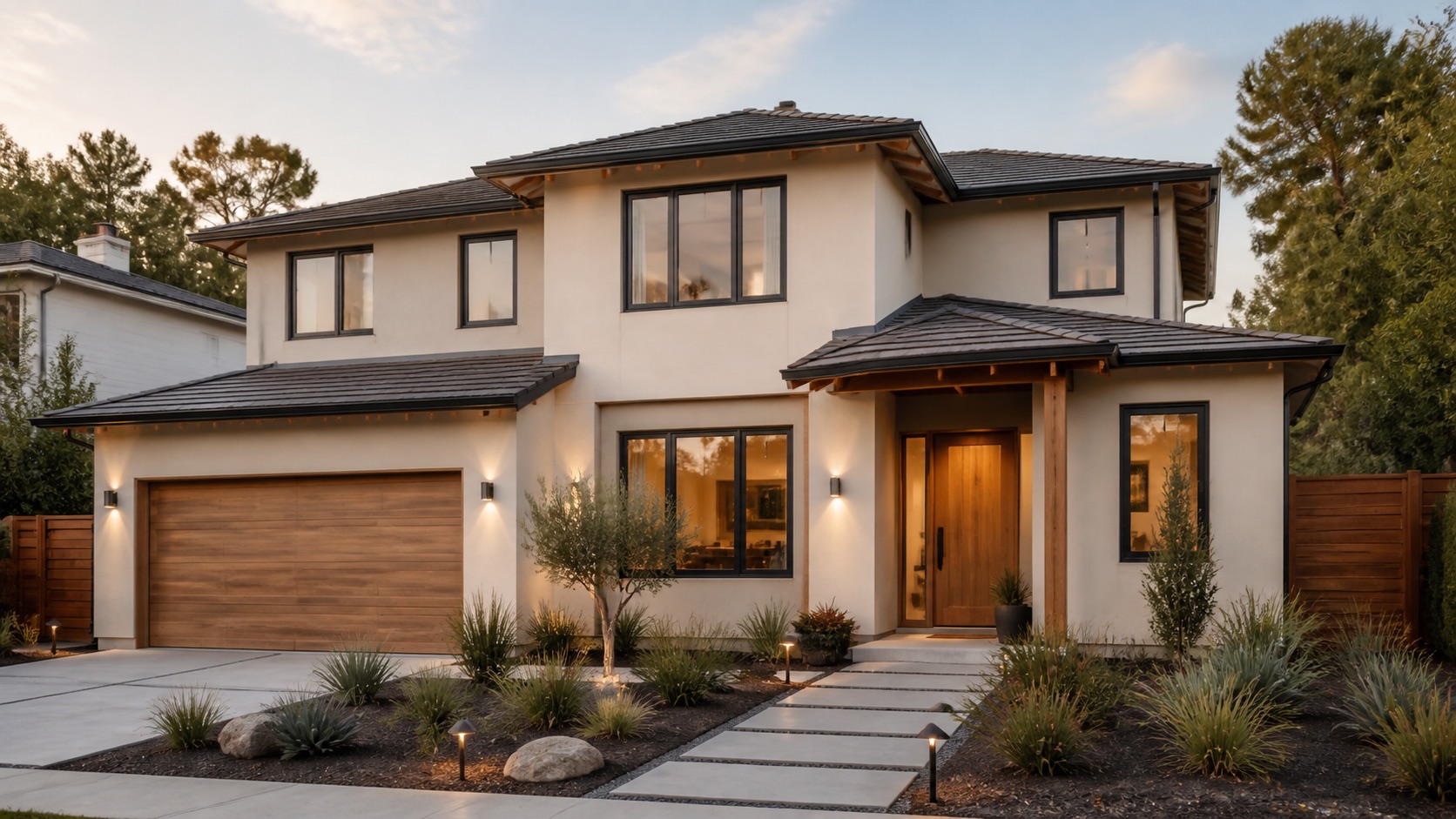
Paint Visualizer for Your Own Room Photo

Use the paint visualizer to compare a new wall color with your existing floor, furniture and lighting. Select the surface in your photo, try a paint color and download a PNG for your decorating discussion.

Color visualizer view

How to use paint visualizer

Start with my project

Choose a clear room photo

Upload a room photo with the wall visible, or load the example to explore the controls. The photo is processed in your browser.

Mark the area and choose color

Use the rectangle or polygon selection to outline the surface you want to change. Select a swatch or enter a color value.

Compare and save the preview

Compare with the original, try another color and undo a selection when needed. Download the painted PNG to discuss the color direction.

Explore your idea with paint visualizer

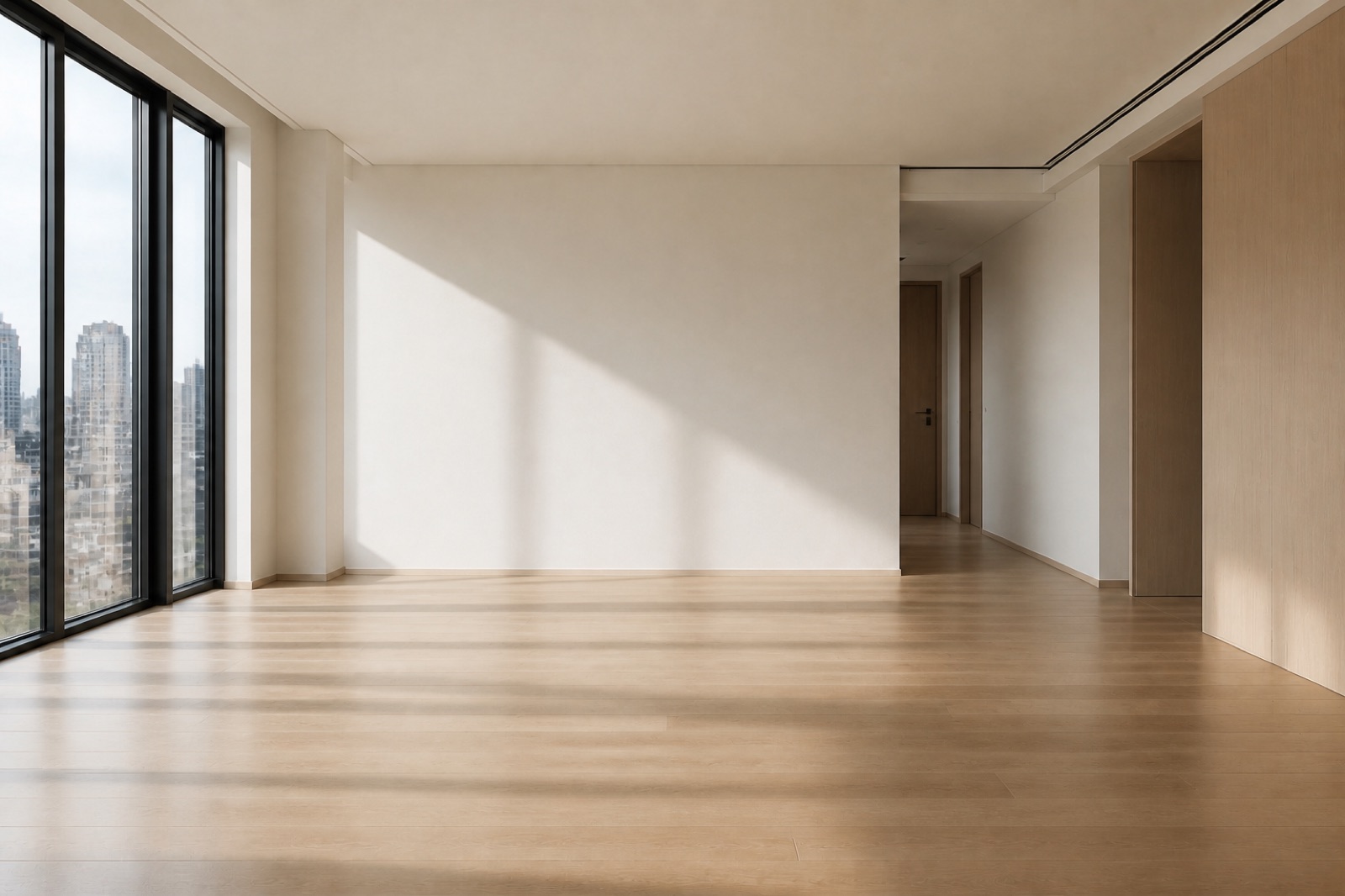
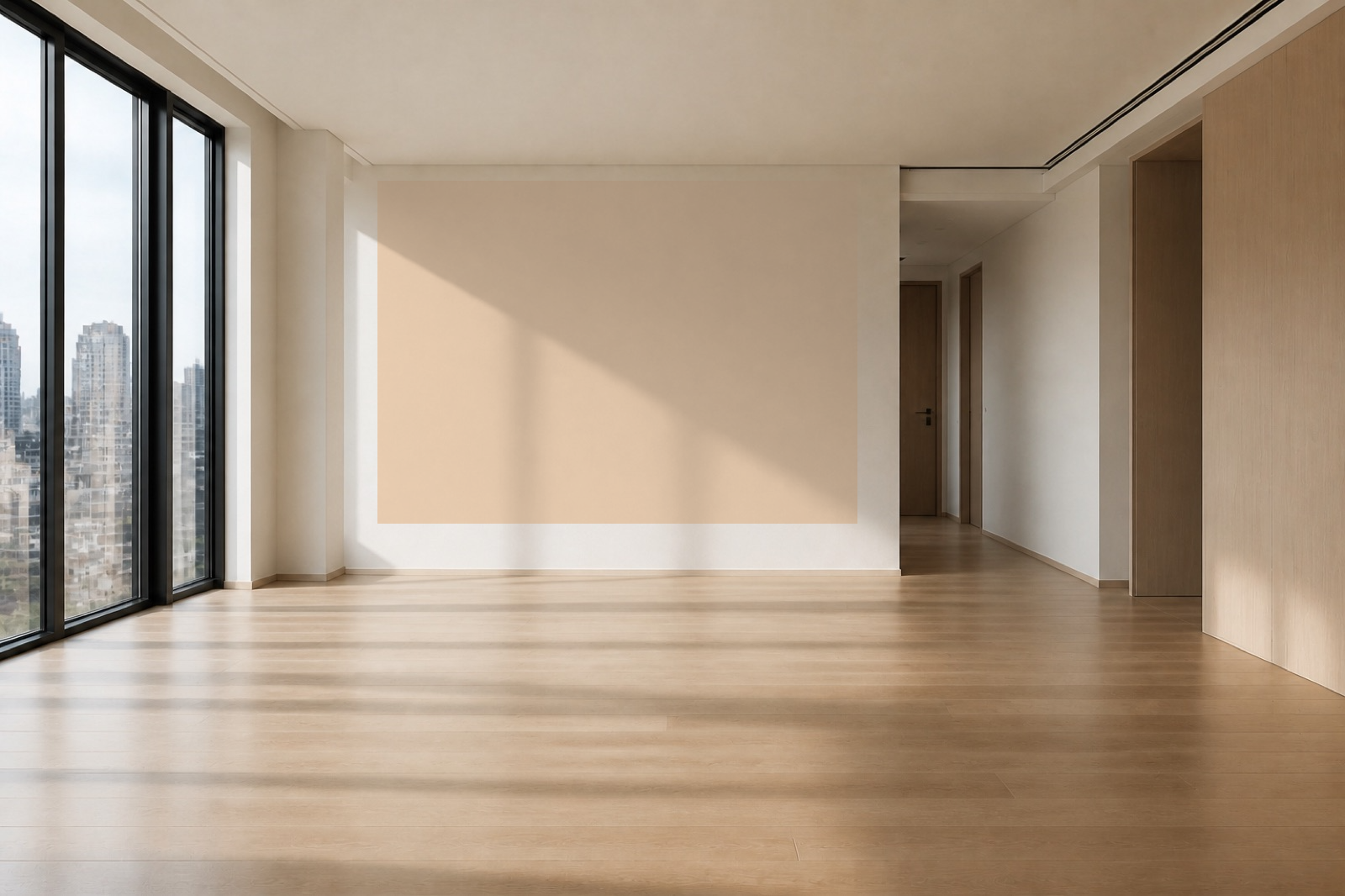
Original empty room photo before local color selection

Judge color in the room you know

The paint visualizer works with your photograph, so the selected wall keeps the familiar furniture and lighting around it. Existing shading remains part of the preview, helping you discuss how a new color might change the room’s balance.

Explore this tool
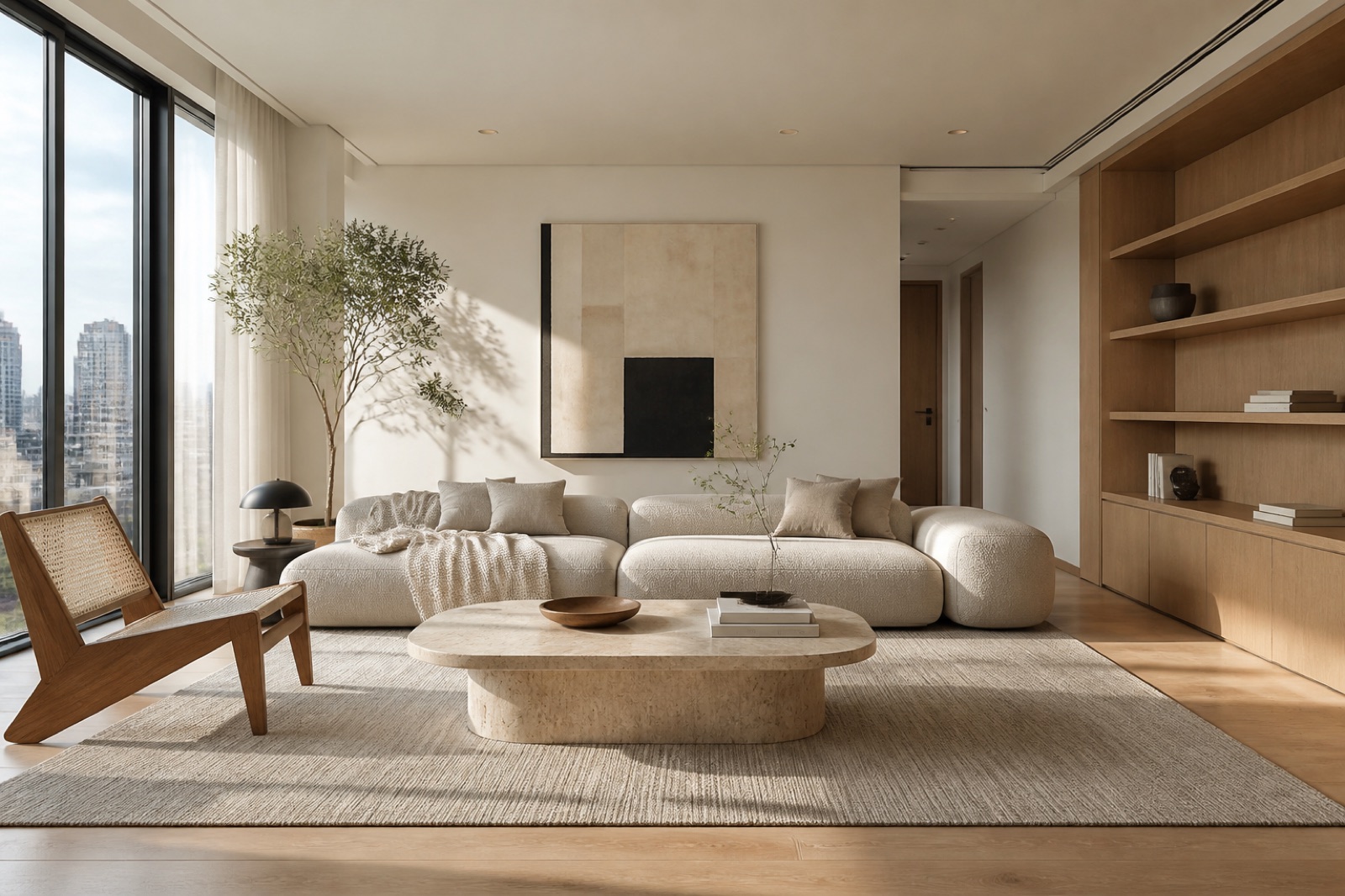
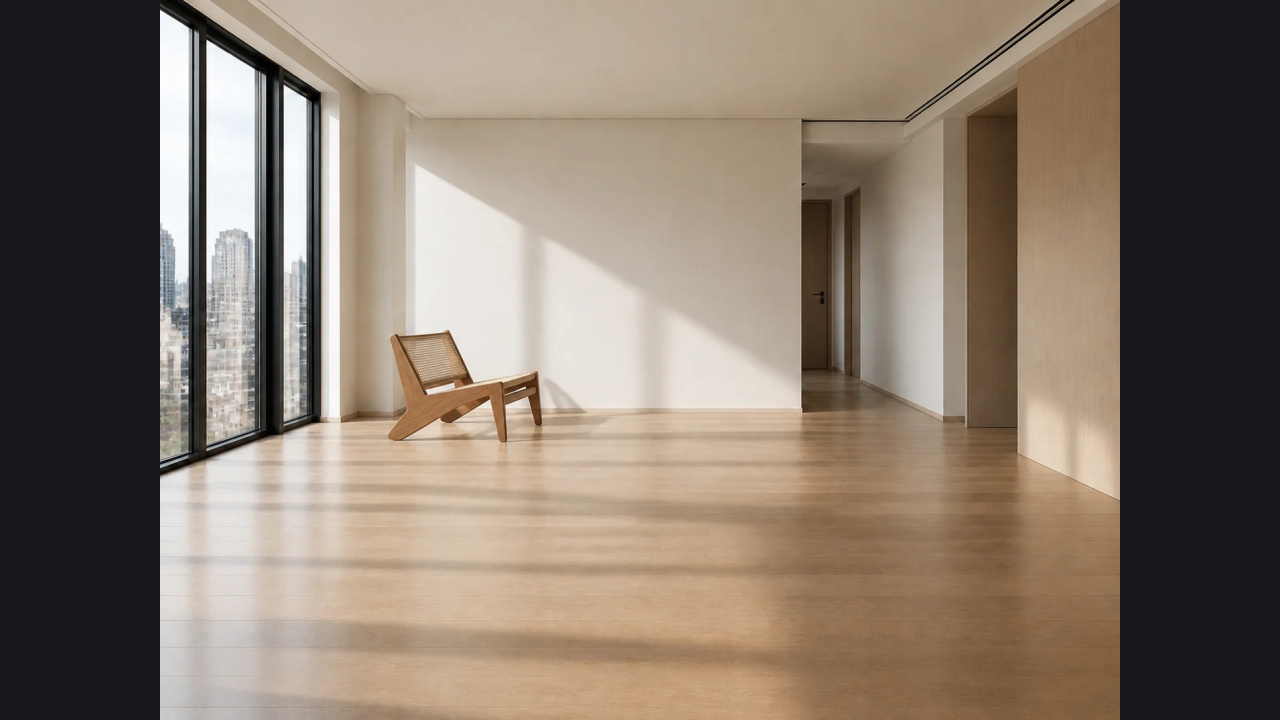
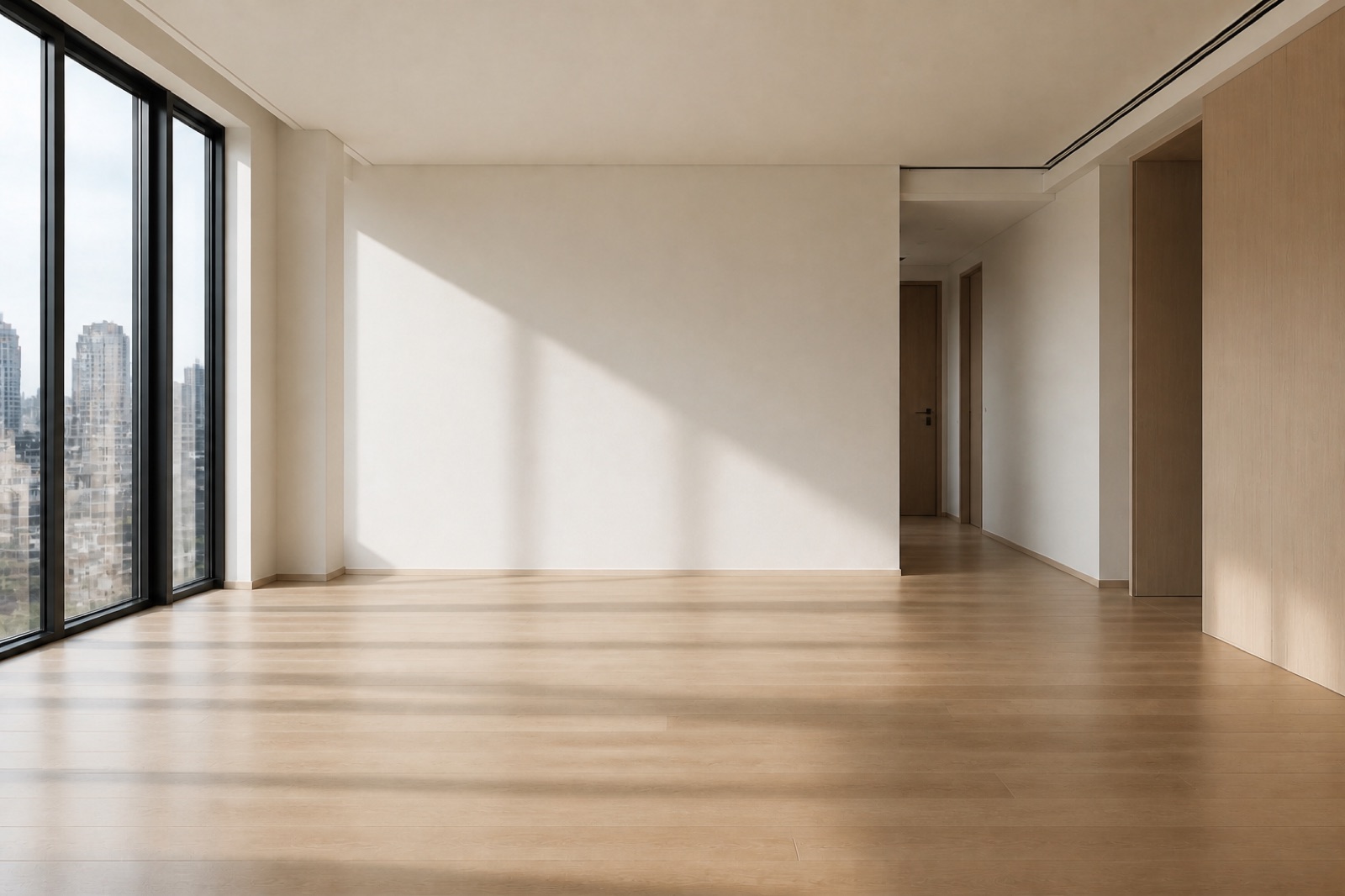
Downloaded color preview with paint applied only to the selected wall area

Control which surface gets the change

A rectangle is useful for a clear wall area; a polygon follows more irregular edges. The paint visualizer puts the selection in your hands, so you can focus on one surface instead of asking a model to reinterpret the entire room.

Explore this tool

Why use paint visualizer

Keep the comparison specific

Test one wall against the same furniture and photograph. The paint visualizer helps you isolate a color choice from changes in styling or camera angle.

Follow the surface you intend

Manual selection lets you decide where the preview applies. Take care around doors, trim and furniture so those boundaries match the question you are testing.

Downloaded color preview with paint applied only to the selected wall area

Explore without an image-generation request

The paint visualizer processes the selected photo locally in the browser. Trying swatches and exporting a preview do not submit an AI image-generation task.

Take a direction to the paint shop

Save the preview as a conversation aid, then compare physical samples in the real room. A screen image helps narrow choices before an on-wall test.

After a paint visualizer comparison, develop the whole room with AI room design or preview a chosen piece with AI furniture mockup.

Paint Visualizer: Questions Before You Start

Logo

Find a paint direction worth sampling

Open the paint visualizer, select one wall and save a color preview you can compare with real samples in your room.

Try a wall color