Prompt
Template 1 of 3AI Product Video Generator
Give a product photo a sense of movement. Upload one image, describe the shot, and create a short clip with your chosen aspect ratio, duration, resolution, and optional audio.
Make the product the focus
Build a motion concept around a photo you already have, then judge the result against a specific visual goal.
Use your own starting image
Begin with the actual product view you want to explore. A clear reference gives you a concrete baseline for reviewing the generated motion.
Keep the creative brief focused
One camera move or lighting idea helps your team discuss a specific direction before investing in a longer production.
Plan around the placement
Choose the output frame before generating so you can consider how the product will sit beside captions and campaign branding.
Compare before committing
Preview the clip, inspect product details, and decide whether another attempt would benefit from a simpler motion or clearer source.
From product image to video: shape one clear shot
Start with a clear product photo
Upload a JPG, PNG, or WebP image up to 10 MB. Choose a readable silhouette and visible material details. Your image establishes the appearance; the prompt directs the movement.
Upload a product photoDirect one visual idea
Describe the subject, camera movement, and elements that should stay still. A focused shot is easier to assess than several competing effects. The workbench supports prompts up to 2,000 characters.
Describe your shotChoose the frame and duration
Select 16:9, 9:16, or 1:1; choose 5, 10, or 15 seconds at 480p or 720p. Turn generated audio on or off to suit your editing plan.
Choose video settingsChoose an angle that supports movement
A front or three-quarter view can reveal shape and material without hiding important parts. Keep the whole item visible when the camera needs room to move. Simplify surrounding props so one subject leads the shot.
Prepare your imageCheck consistency through the whole clip
Watch the beginning, middle, and end. Compare color, silhouette, lettering, and small parts with your original. Look for shifting seams or reflections that hide the subject. Reject a take when those changes could misrepresent the actual product.
Create a motion conceptGive each product clip a specific job
Bring a finish into focus
Explore a slow movement across a textured bag or glazed mug. Pair the reviewed clip with accurate catalog photos and specifications, giving customers another view of the material.
Explore a launch opening
Use an approved product image to develop a studio reveal or quiet camera move. Share the concept with your team to agree on framing and mood before planning a larger production.
Compose for social placements
Choose a vertical or square frame for your intended placement. Keep the item readable throughout the movement, leaving space for captions and branding you will add in your usual editor.
Create a clip from your existing product image
Start a product videoUpload your reference
Choose a clear product photo. Check the crop and visible details before adding it to the workbench.
Describe the shot
Write one motion idea and select your output settings. Review the displayed credit cost before generating.
Preview and download
Watch the complete clip, compare it with your original image, and download a useful result.
Explore more visual design tools
Questions before you animate a product
It creates a short clip from one product image and your motion instructions. Preview and download a successful result, then assemble longer stories or add precise captions and campaign branding in your separate editing workflow.
Use a sharp reference and modest movement. Name the silhouette, material, and label details that matter. Instructions guide generation but cannot guarantee an exact match; compare the entire clip with your source.
This workflow requires a product image. A prompt directs that reference rather than replacing it. Prepare an image you are entitled to use in JPG, PNG, or WebP format, up to 10 MB.
Start with the intended aspect ratio and a five-second, simple camera move. Choose 480p or 720p for your review needs. Duration and resolution affect the required credits, so check the displayed cost.
Yes. Leave generated audio off for a silent clip or a separate soundtrack. When you enable audio, listen to the full result and assess whether its timing suits your finished campaign.
Keep the source and prompt with your selected clip. Add approved captions, branding, and sound in your editor. Review the final export at its intended display size before publishing.
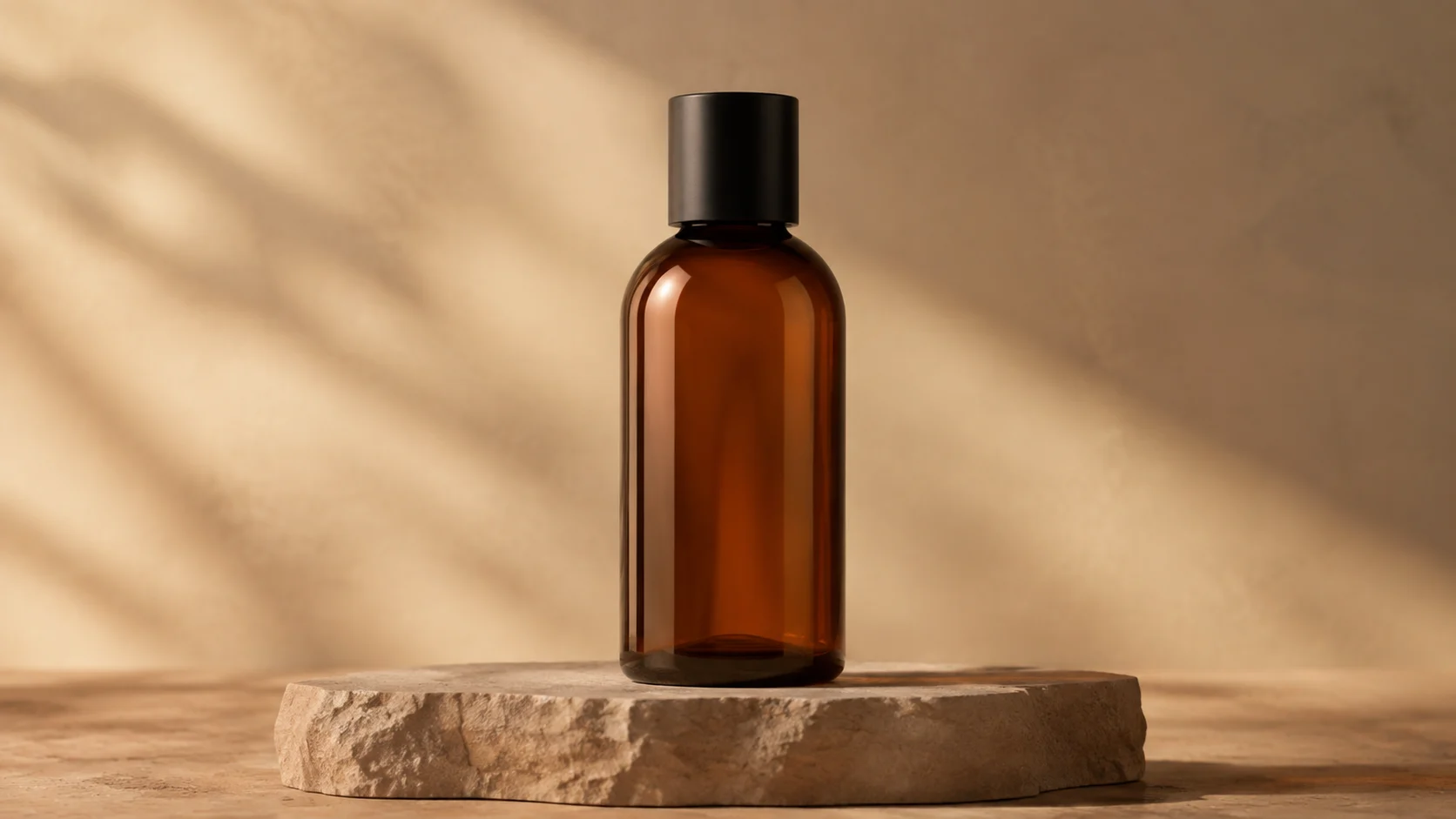
Try: Keep the amber bottle upright and centered on the stone plinth. Move the camera slowly closer while a soft highlight passes over the glass. Keep the background simple. Replace these details with your own product and scene.
Zoom in on lettering, closures, seams, and any feature customers need to recognize. Choose another photograph when glare hides your selling point. Avoid extreme crops or a crowded collection of products that makes the intended subject unclear.
Keep the same image and change one instruction, such as camera speed or lighting. Save each prompt beside its clip. Ask reviewers which take better emphasizes the intended material or silhouette, rather than choosing solely by dramatic effects.
A generated clip may suggest opening, bending, pouring, or another action that your photograph does not demonstrate. Verify any implied behavior against the actual product. Use a real demonstration when the message depends on measurable performance.

Turn your next product photo into a motion concept
Start with a clear image and one shot idea. Choose your settings, generate a clip, and review how the movement supports your product story.
Create a product video